
This is an earlier version. The current manual is v7.5.0.
6 Auditing
Performing and managing audits is a primary function of MOST™. Once question sets have been created and various lists have been properly populated, the act of creating, completing, and managing audits is quick and intuitive.
6.1 Access to Audits
A user is given the ability to work with an audit if they meet any of these criteria:
the user created the audit
the user is named as a reviewer for the audit
the use is named as a manager for the audit
For typical users the audit listing screen shows only audits the user can edit. An exception is that organization admins (in the traditional permissions model) will have all audits of the organization in this list. Organization admins will only be able to modify audits if one of the criteria above are met, however.
Reporting admins have permissions to run organization-wide reports and as such can view audit results even if they are unable to modify such audits.
6.2 Creating an Audit
There are two main parts of an audit:
The audit header: contains header information such as audit name, date, who/what is being audited (i.e., audit subject), who is performing the audit, and whether or not the audit workflow involves a manager.
The ribbons: contain the actual questions to be answered.
6.2.1 The Audit Header
Buttons to create a new audit are available on the menus of the Tasks screen and the Audits screen. To create a new audit from the audit listing screen:
If necessary, click on the Audits link (
 ) in the top right corner.
Click on

Upon completion of the audit header you will be directed to the audit answer page (described below).
To edit an existing audit header:
If necessary, click on the Audits link (
) in the top right corner.Click on the wrench icon (
 ) next to the audit you want to modify.
Click on

The screen to create a new audit or modify the header of an existing audit has 4 sections:
- Audit Name/Date
Audit Name – is the patient ID (chart number), or whatever identifier you wish to choose.
Date - this field will automatically populate with the current date. If this is not the date chosen for this audit click on the field with the date and a calendar will appear in which a date may be chosen.
- Audit Subject
The categories and options for what can be specified as an audit subject are based on person roles and tag types that are in use by the organization (see section Person Roles and Tag Types). If any of these have been designated as required they will have a drop-down immediately available. Otherwise it will be necessary to choose at least one subject. There can be any combination of tags and people identified as subjects (including multiple of the same type).
- Audit Manager Settings
Specifying an audit manager is optional. If a manager is specified then the option for requiring a review of the audit by a manager is available. An audit manager is given privileges to modify an audit. See the Workflows section below for details on how requiring a review affects the application.
- Reviewers
Each audit must have 1 or more reviewers assigned. A reviewer is the user who is assigned the responsibility of completing the audit. Click on the dropdown box to choose the reviewer.
Role – Click on the bubble which best describes the role of the auditor i.e., Normal, Peer, or Supervisor. This has minimal impact on other parts of the application. It is currently only used as a possible filter in the Audit Listing Report.
Scope – Click on the bubble which best describes the scope of the audit: Non-Clinical, Clinical, and both Clinical and Non-Clinical. This has minimal impact on other parts of the application. It is currently only used as a possible filter in the Audit Listing Report.
Multiple reviewers can be associated with the audit by clicking on the Add Reviewer button. Any user listed as a reviewer will be given permission to edit the audit.
When the audit header is saved it will appear on the audit listing screen.
6.2.2 The Ribbons Screen
The ribbons screen for an audit provides an interface to answer questions. When first creating an audit you will be prompted to specify which ribbons to include in the audit. Each ribbon is an instance of a question set. The interface for creating ribbons looks like this:
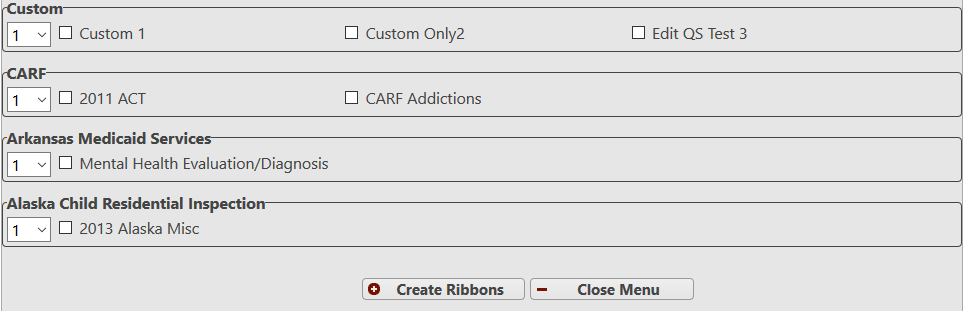
On this screen question sets are organized by standard. If an organization uses only custom questions then all question sets will appear in the Custom category. An audit can utilize an arbitrary number of ribbons including multiple ribbons built from a single question set.
Upon creating one or more ribbons the ribbons screen appears:
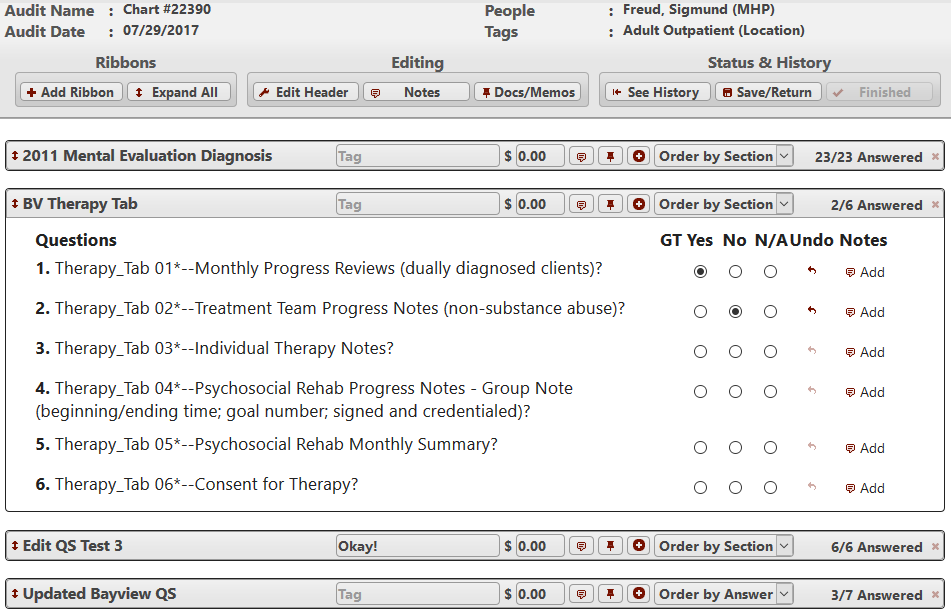
This example audit contains 4 ribbons. The menu at the top provides the following buttons:
Add Ribbon is used to add additional ribbons to the audit if needed
Expand All opens all ribbons to reveal questions (and changes to Collapse All)
Edit Header allows changes to audit header information
Notes provides a place to enter text-based notes that pertain to the audit. These notes can appear in some reports.
Docs/Memos allows external documents or memos to be attached to the audit and later retrieved. A “memo” is simply text to be stored with the audit but that will not appear in reports. Likewise, attached documents do not appear in reports.
See History displays an overview of actions that have been performed on the audit in the section called “Summary History”. This summary history includes events such as creation, assigning reviewers, attaching documents, etc. MOST™ also tracks more detailed information (including who answered what questions at what time, etc). This information is provided in the section called “Detailed History”.
Save/Return goes back to the audit listing screen.
The final button changes depending on what workflow is being used and whether or not all questions have been answered. See the section Workflows for more information.
6.2.3 Answering Questions
When a ribbon is expanded it will reveal a series of questions. Questions can be answered as “Yes”, “No” or “N/A”. An answer can be “unanswered” by clicking on the “Undo” icon. If a question does not apply for a particular audit then it is preferable to answer it as “N/A” rather than leaving it blank because audits with unanswered questions cannot be locked and it can help eliminate ambiguity in reporting.
It is possible to answer all unanswered questions with a single click on the header (“Yes”, “No”, or “N/A”) for a column.
Policy notes. When you answer No to a Joint Commission question, a note may appear under it. It says what the starter policy library provides for that requirement: which policy document or register covers it, or that the requirement needs nothing in writing and why.
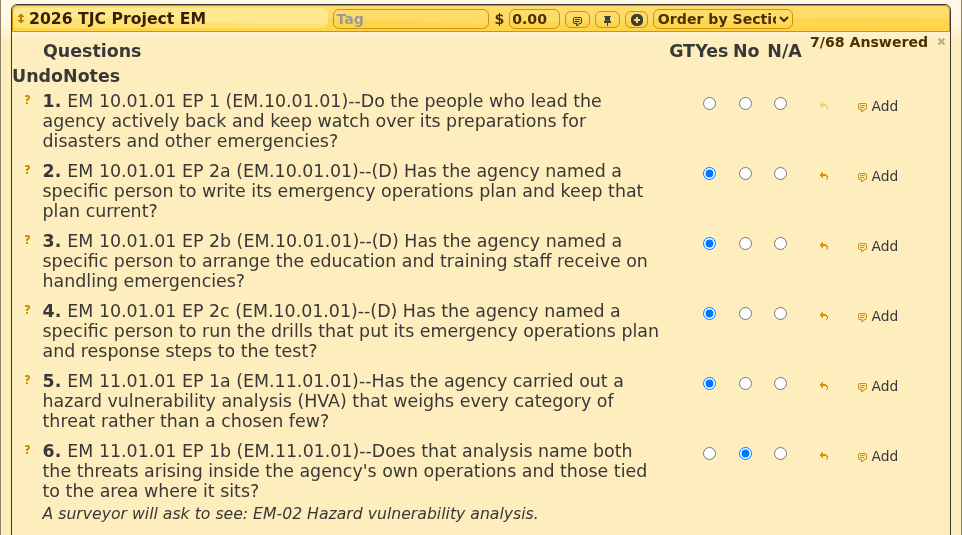
The note is there to point you at the paperwork a surveyor will ask for. It disappears when you change the answer to Yes or N/A, or undo it, and it is not saved with the audit or printed in reports. Notes appear only for chapters your organization can see on the Policy Documents page. When the question set comes from a different edition of the standard than the policy library, the note is matched by standard rather than by element of performance, and says so. Notes appear on the mobile screens too (see MOST™ Mobile).
Comments can be added to an individual question/answer by clicking on the Add button in the “Notes” column. This will produce a popup window that allows entry of comments. Once a note has been added to a question the button label is changed from Add to Edit, notifying the reviewer that a note has been made about that specific question.
Some questions contain additional information intended to clarify the question. Questions that have this supplemental information contain a help icon ( ) to the left. Simply click on the icon to view the supplemental information.
NextStep-integrated customers may also have a link icon ( ) to the left of some questions. Clicking on the link will open a window in NextStep that shows the location in a chart that the information being asked about should be documented.
6.2.4 Working with Ribbons
An example ribbon header is shown below. In addition to the form elements shown below, a ribbon contains questions which are revealed when the ribbon is expanded.

Opening and closing ribbons is accomplished by clicking on the ribbon name (anywhere to the left of the tag).
The tag is a simple text field (50 character max) that allows you to distinguish among multiple instances of the same question set. This tag is unrelated to “audit tags” that identify audit subjects.
The fee value defaults to the value specified in the question set, but can be modified here to match the actual fee charged for a service. For many use-cases fees can be ignored. A scenario where tracking fees might be useful is in cases where a ribbon is an evaluation of a particular service (say a psychotherapy session) for which state or federal funds (e.g., medicaid) are used to pay for said service. If the service was provided in a non-compliant way then an organization could be at risk of recoupment for those fees. If fee data is kept then the Risk Detail Report can be used to specify an acceptable compliance rate and will determine fees that are at risk of recoupment.
The notes button (
 )produces a pop-up window in which notes specific to this ribbon can be entered.
The attachment button (
 ) allows external documents or memos (inline messages) to be attached to the ribbon for documentation purposes. Attached items can be retrieved by anyone who has permissions to access the audit. Attached items do not appear in reports.
The numbering button (
 ) toggles line numbers within the ribbon. The default numbering behavior can be specified by visiting the Preferences menu.
Questions within a ribbon can be ordered by section, answer or gold/silver thread status (where gold thread refers to questions that are designated as clinical).
A ribbon can be removed by clicking on the
 icon. The icon becomes unavailable as soon as any question has been answered. Questions can be unanswered to make the delete operation available again.
Within an open ribbon questions can be answered/unanswered and notes can be entered pertaining to each individual question. These notes can optionally appear in some reports.
6.3 The Audit Listing Screen
See section Listing Screens above for information on working with features common to many listing screens. To launch the audit listing screen:
- Click on the Audits link () (available at the top-right of every screen)
To see something like this:
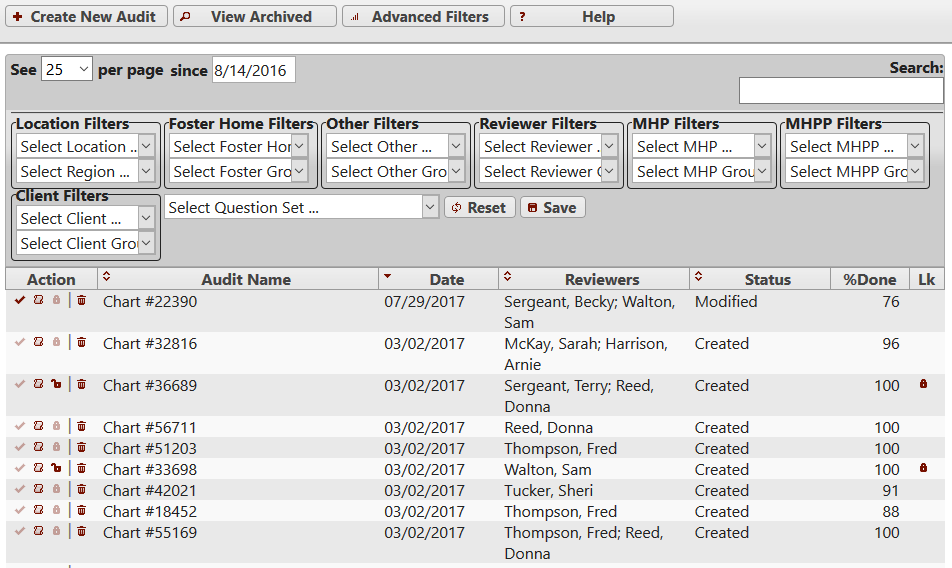
Available actions for each audit include:
Answer questions for the audit at the ribbons screen (
)View a detail report for the audit (
 )
)Lock or unlock an audit (
 ,
, )
)Archive an audit (
 )
)
The audit listing provides these additional columns:
Audit Name: specified by user when the audit is created.
Date: specified by user when the audit is created.
Reviewers: persons who have been assigned to complete the audit
Status: One of these codes: Created, Submitted for Review, Reviewed/Needs Action, or Completed.
%Done: determines what percentage of the questions in the audit have been answered.
Lk: displays a lock icon if the audit is locked.
In this example the user is an organization admin (traditional permissions model) so they see all audits for the organization in the list even though they do not have permission to edit all audits as indicated by the grayed-out checkmark icons.
The default view provided by the audit listing screen is to display audits from the last 6 months. There are 25 displayed per screen by default. Audits are listed in reverse date order so that most recent audits are listed first. Audits can be re-ordered by clicking on any header. Also, the list can be searched by entering text into the search box at the top of the list. If there are more than 25 audits to be listed the user can see more by using the navigation buttons at the bottom of the list or by increasing the number of audits listed on the screen (up to 100).
6.3.1 Viewing a Detail Report for an Audit
A detail report for an individual audit can be launched by clicking on the report icon () beside an audit. The report will not show unanswered questions and will not show questions marked as N/A. It will include the audit name. To run the same report with different options/settings see section Audit Detail Report below.
6.3.2 Using Advanced Filters
A user can restrict/filter the audit list further by clicking the Advanced Filters button. Clicking this button opens a panel in the list header that allows filtering audits by persons, person groups, tags, tag groups, and by question set. This panel also provides the ability to save a filter set so that when the user returns to the audit screen those filters will remain in effect. The filter saving feature also applies to ordering of the list, the start date (stored as number of days prior to the current date), the number of entries to view and a search value. To permanently clear filters, first click on the Reset button and click the Save button.
Clicking on the Advanced Filter button again will hide the filters. The filters will show by default if filters have been saved and will hide by default if filters are cleared.
6.3.3 Locking and Unlocking Audits
Locking of audits is not part of the process used by some organizations. For organizations that want lock-down capabilities to ensure audits are not tampered with, the locking feature may be helpful. Audits that have been completed can be locked. A locked audit cannot be modified. This provides assurance that data will not be modified. Locking works as follows:
An audit must have all questions answered and marked with a status of “Completed” prior to locking. If some questions do not apply, then the user will have to answer “N/A” for those questions rather than leaving them unanswered.
For organizations using the traditional permissions model only an organization administrator can unlock a locked audit. For organizations using the Compliatrac permissions model only user admins can unlock audits. Unlocking an audit is accomplished by clicking on the unlock icon (
) beside an audit.Only a user with access to an audit (creator, reviewer, manager) can lock that audit. This is accomplished by clicking on the lock icon (
) beside an audit.Locking an audit does not affect its ability to be archived.
6.3.4 Archiving an Audit
Audits can be removed from the Audits screen by archiving them. As with any listing screen this action does not delete the audit but simply removes it from the listing screen. Any user who has permissions to edit an audit can archive it. Typical users do not, however, have access to the “View Archived” screen and therefore may not permanently delete or unarchive the audit. For organizations using the traditional permissions model only an organization administrator can access archived audits. For organizations using the Compliatrac permissions model only user admins can access archived audits.
6.4 Audit Batches (NextStep-integrated)
NextStep-integrated customers can create multiple audit headers in a single step by randomly selecting cases directly from the EMR.
6.4.1 Audit Batch Listing Screen
See section Listing Screens above for information on working with features common to many listing screens. To get to the batch listing screen:
If necessary, click on the Audits link (
) in the top right corner.Click on the Audit Batches button (
 )
)
An example of the batch listing screen:
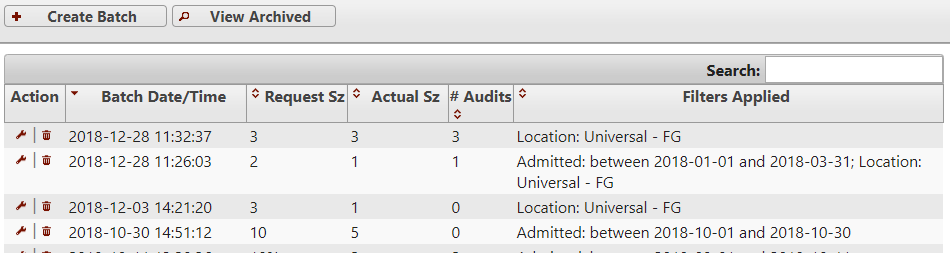
Each batch is a collection of cases from the EMR that have been randomly selected after optionally applying various filters. To work with a batch simply click the wrench icon. To create a batch click the “Create Batch” button.
6.4.2 Creating an Audit Batch
To create an audit batch you will specify how many entries you want included in the batch. This can be given as a number or a percentage of available records. If the specified percentage results in more than 100 records, the results will be capped at 100 for a single batch. If you want to ensure that records in a newly requested batch don’t overlap with the same client/visit you can place a checkmark in the appropriate box. If the box is left unchecked then records may duplicate previously batch requests.
The filters are optional, but can be applied to restrict results to a particular subset of records.
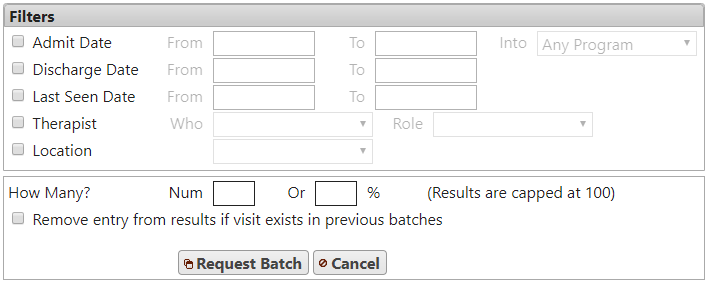
After a batch has been successfully created you will be presented with the batch detail screen.
6.4.3 Working with a Batch
The batch detail screen is the default landing place after a batch is created. It can also be reached from the batch listing screen and clicking the wrench icon beside the batch of interest.
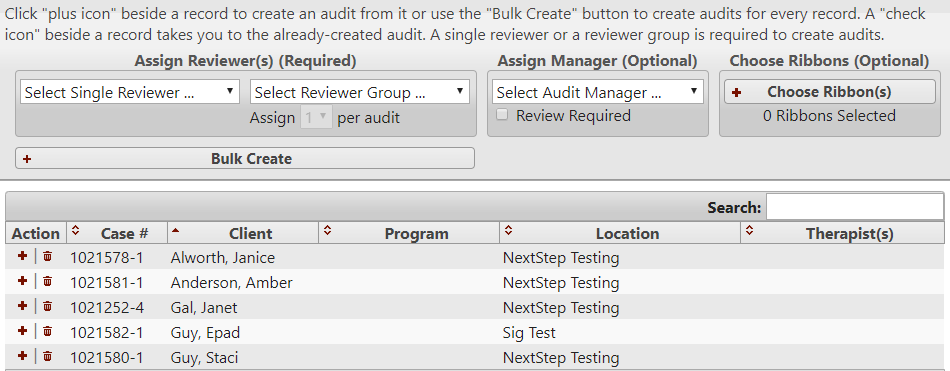
From this screen it is possible to create audits individually or in bulk by following these steps:
Specify reviewer(s). A single reviewer can be assigned to all audits in the batch or reviewers can be assigned consecutively from a group of reviewers.
Specify an audit manager if using a managed workflow. See section Workflows for more information.
Optionally specify one or more ribbons to be included in each audit.
To create audits one at a time simply click the plus icon for each case. To create audits for the entire batch click the Bulk Create button. Upon creating audits the plus icon will change to a checkmark icon that will take you directly to the audit. As with all audits, audits created in this way will appear in appropriate audit lists and task lists.