
This is an earlier version. The current manual is v7.5.0.
4 Listing Screens, Persons, and Tags
When creating an audit there must be at least one audit subject identified. An audit subject can be a person or a tag. So, prior to auditing a user with privileges to work with lists (a list admin) will need to populate the person and tag lists so they will be available when auditing. NextStep-integrated users will not need to do this when using batch-created audits because the lists will automatically be populated with needed values.
4.1 Listing Screens
When working with persons (or tags) the first screen is a “listing screen” which provides a list of the persons in the system. Listing screens are widespread throughout the application, so learning to navigate one listing screen will carry over to other parts of the application. The persons listing screen will look something like this:
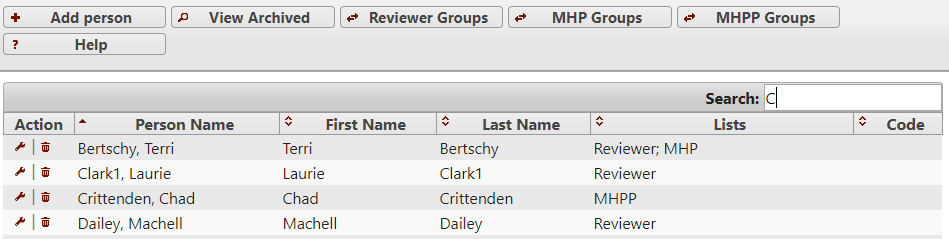
A listing screen has a menu of buttons at the top of the screen that typically include options for: Add, View Archived, and Help. Some listing screens also provide one or more buttons for working with groups of items. In this example, groups can be created for each person role that exists for the organization. (See discussion of Person Roles and Tag Types above).
The list itself will show pertinent information stored about the items along with an Action column containing icons showing available actions for the entry. Nearly every listing screen will include the two actions shown in this example:
 to modify the entry
 to archive the entry
4.1.1 Searching and Sorting
The search box at the top-right of the list efficiently restricts a long list to show only matching entries. In addition columns are sortable by clicking on the column header. This above example the list is currently sorted in ascending order by “Person Name”. Clicking on the “Person Name” header will resort in reverse order.
4.1.2 Adding/Editing an Entry
Adding and editing an entry uses the same interface. In this example we store last name, first name, roles, and a code:
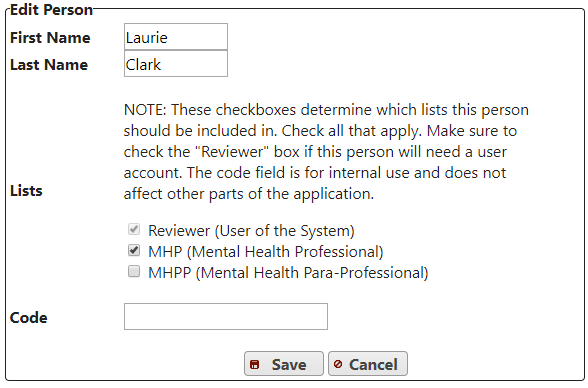
The code is not used by the application but is provided as an option to store additional text regarding persons that can aid searching on the listing screen.
4.1.3 Archiving vs. Deleting
Many listing screens include an option for archiving an entry via a trash can icon (). Suppose a person who was a therapist and who has appeared as a subject in several audits has left the organization. You will likely want to archive this user so their name will no longer appear in drop-down lists or on the person listing screen. Archiving a person does not remove them entirely from the system. Instead it removes them from a listing screen.
To work with archived entries simply click the View Archived button to produce the “Archived Entries” listing screen:

If an entry has been archived accidently it can be restored by clicking the corresponding restore icon  . To permanently delete an entry from the system you can click the trash can icon from the list of archived entries. You will not be able to permanently delete entries that are referenced by audits. This is to allow for historical reporting and to prevent invalid database references.
4.1.4 Working with Groups
Groups of items are used through MOST™ to facilitate flexible filtering in reports. As an example, you may want to view auditing results for all paraprofessionals that work with a given therapist. Or, you may want to see a list of audits completed by a particular group of reviewers. In either case you’ll need to create a group of entries. To work with groups click the Group button in the header of the listing screen. The result is a listing screen showing groups. Adding or editing a group will produce a screen similar to this:
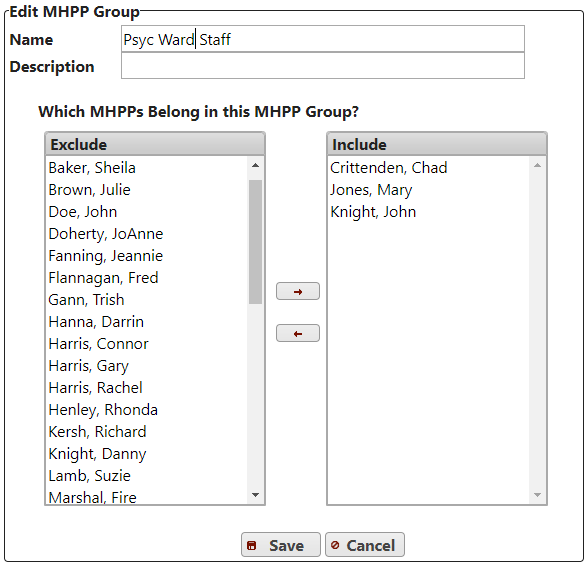
Entries can be moved between the “Exclude” and “Include” columns by highlighting one or more of them and clicking the corresponding arrow.
4.1.5 Using Help
Clicking on the Help button at the top of a listing screen provides a list of context-sensitive topics as shown here for the person listing screen:
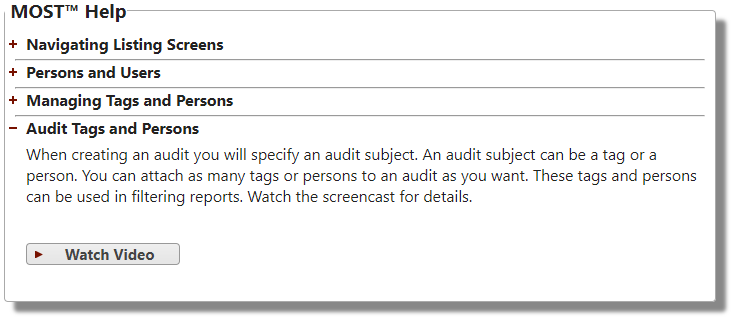 Clicking on a topic header will display the help text. Some help topics include an instructional video.
4.2 Persons and Tags
Establishing lists of persons and tags is needed to populate drop-down lists used when creating audits. Persons and Tags both utilize a listing screen as the initial interface. (See section Listing Screens above for details on working with listing screens).
4.2.1 Persons
The “person listing screen”can be accessed by:
If necessary, click on the Menu link (
 )
)Click on the Persons button from the Menu page.
For information about person roles and where they come from see section Person Roles and Tag Types above.
4.2.2 Tags
There is a separate listing screen for each tag type. For information about tag types and where they come from see section Person Roles and Tag Types above. On the Menu screen tag types are listed in their own section as in this example:
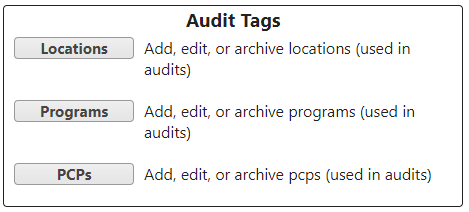
Listing screens for tags are launched by clicking on the appropriate button for the tag you want to work with.