
This is an earlier version. The current manual is v7.5.0.
9 Policy Documents
MOST™ can give your organization a starting set of written policies and records for its accreditation standards. For the Joint Commission these follow the surveyor manual: one Word document for each chapter, and a set of Excel workbooks (registers) for the logs and records that chapter asks you to keep.
They are a starting point, written to be adapted, not adopted unread. You tell MOST™ what your organization does and fill in the values the documents ask for; anything MOST™ does not yet know about your organization appears in a document as [[NAME]], so a document is useful before it is finished and shows you what is still to fill in. Every document ends with the standards that need nothing in writing, and why, so a surveyor’s question about a missing policy has an answer.
Policy documents are available to organizations whose standards have a starter library: the Joint Commission, and CARF Behavioral Health (from its 2026 edition). For those organizations the Menu has a Policy Documents box. For CARF, the documents follow the edition your organization works from (see CARF Editions), and an edition MOST™’s library does not provide has none. To open the Policy Documents page:
If necessary, click on the Menu link (
 )
)Click on the Policy Docs button in the Policy Documents box.
9.1 Who Can Do What
Anyone in the organization can see the answers and download documents. Changing an answer or the chosen chapters needs the policy admin right (Give user rights to set policy document values and choose policy chapters), which is given in a user’s permissions from the Users screen (see Creating and Managing Accounts). Organization admins have it already. In the CompliaTrac permissions model there is no organization admin, so someone must be given policy admin or nobody can fill the documents in. When policy documents arrived in v7.0, users who were question admins were given policy admin.
Switching your organization to a newer CARF edition needs the policy admin right too (organization admins have it), because the policy documents follow it. See CARF Editions.
A policy document carries no audit data and no PHI.
9.2 The Policy Documents Page
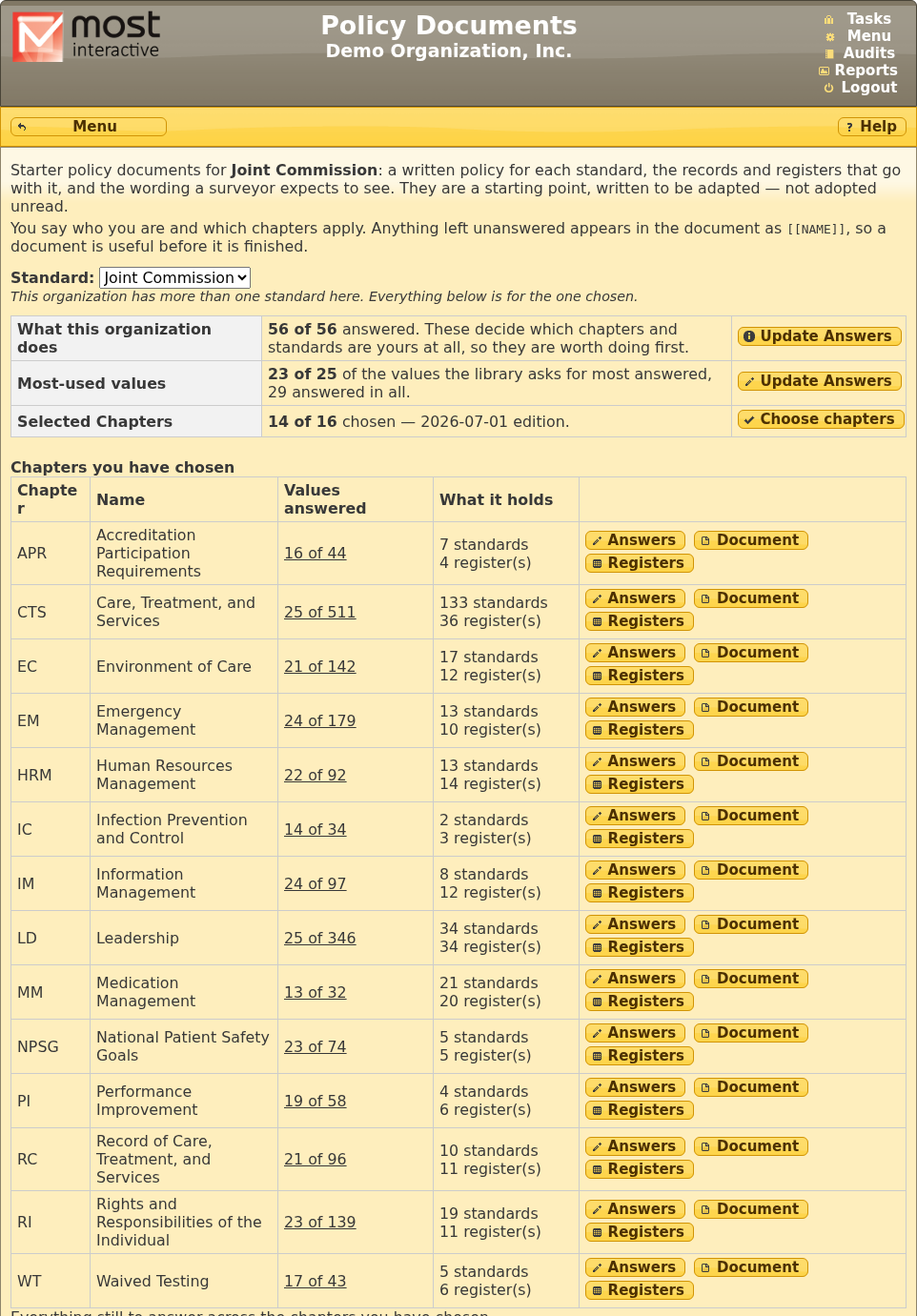
If your organization has policy documents for more than one standard, choose one from the Standard dropdown at the top; everything below it is for the one chosen. The page opens on the Joint Commission.
The page shows how far your organization has got:
What this organization does: the questions that decide which chapters and standards are yours at all. Answer these first. Nothing can be built until every one has been decided.
Most-used values: the names, roles and time periods the library uses most often. Answer them once and they fill in everywhere.
Selected chapters: the chapters your organization adopts, and the edition of the standard they come from. Chapters every accredited organization owes are always included.
Each chosen chapter has three buttons: Answers, to fill in the values that chapter uses; Document, to download the chapter as a Word document with your values filled in; and Registers, to download its workbooks. Everything still to answer lists every value the chosen chapters still need, in one place.
9.3 Saving as You Go
The policy documents screens have no Save button. A choice is saved when you click it, and typing is saved a moment after you stop or when you leave the box. The note in the bottom corner of the screen says Saving, then All changes saved. If it says Not saved, click Retry; if that fails, your session may have expired, so reload the page before carrying on. The page asks before you leave it only while something is still unsaved.
Every value screen can show All, Unanswered or Answered, so you can work through what is left.
9.4 What This Organization Does
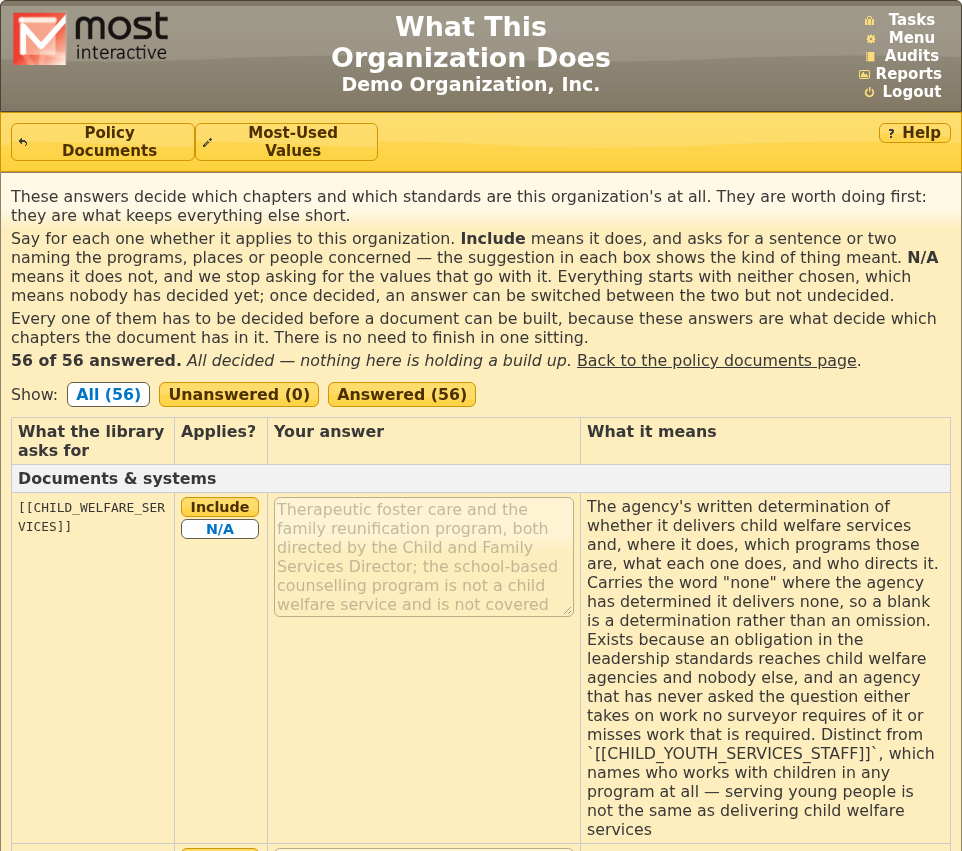
These answers decide which chapters and which standards are your organization’s at all, so they are worth doing first. For each question choose:
Include: it applies, and the box holds your answer: a sentence or two naming the programs, places or people concerned. The suggestion in each box shows the kind of thing meant.
N/A: it does not apply here, and MOST™ stops asking for the values that go with it.
Every question starts with neither chosen, which means nobody has decided yet. Once you have chosen, you can switch between the two but not go back to neither, so an answer that has been decided stays decided. Typing an answer chooses Include for you. Choosing N/A clears the answer, and asks first if something is written there.
Every question has to be decided before a document can be built, because these answers decide which chapters a document has in it. There is no need to finish in one sitting.
9.5 Most-Used Values
The values you give are your organization’s, not one document’s: one answer to the chief executive’s title appears in every document that mentions it. Changing one changes it everywhere the next time a document is downloaded. Nothing here has to be finished before you can build a document.
Roles are usually titles. Answer a role such as Program Director or Clinical Director with the title your organization gives it, not a person’s name. One answer is used everywhere the role is mentioned, so a title covers every program and does not go out of date when someone leaves. A few ask for a named party because the requirement does (an outside firm or contractor, such as legal counsel, or the holder of a licence or certificate, such as the pharmacist-in-charge), and the What it means column says so where one does.
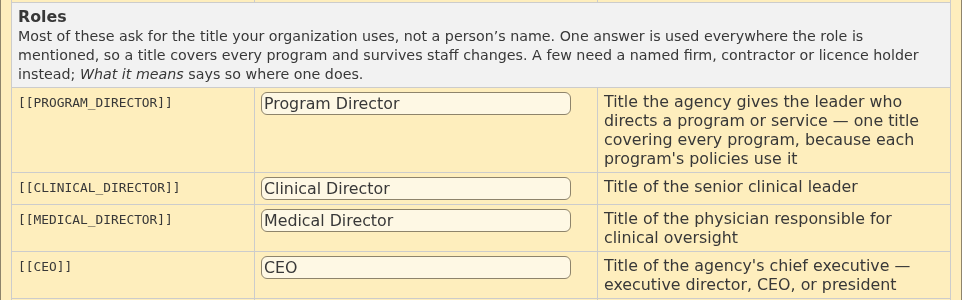
The Answers button beside a chapter shows the values that chapter asks for. They are shared with every other chapter that asks for the same thing, so answering one there answers it everywhere.
9.6 Choosing Chapters
Choose chapters on the Policy Documents page lists the chapters of the standard.
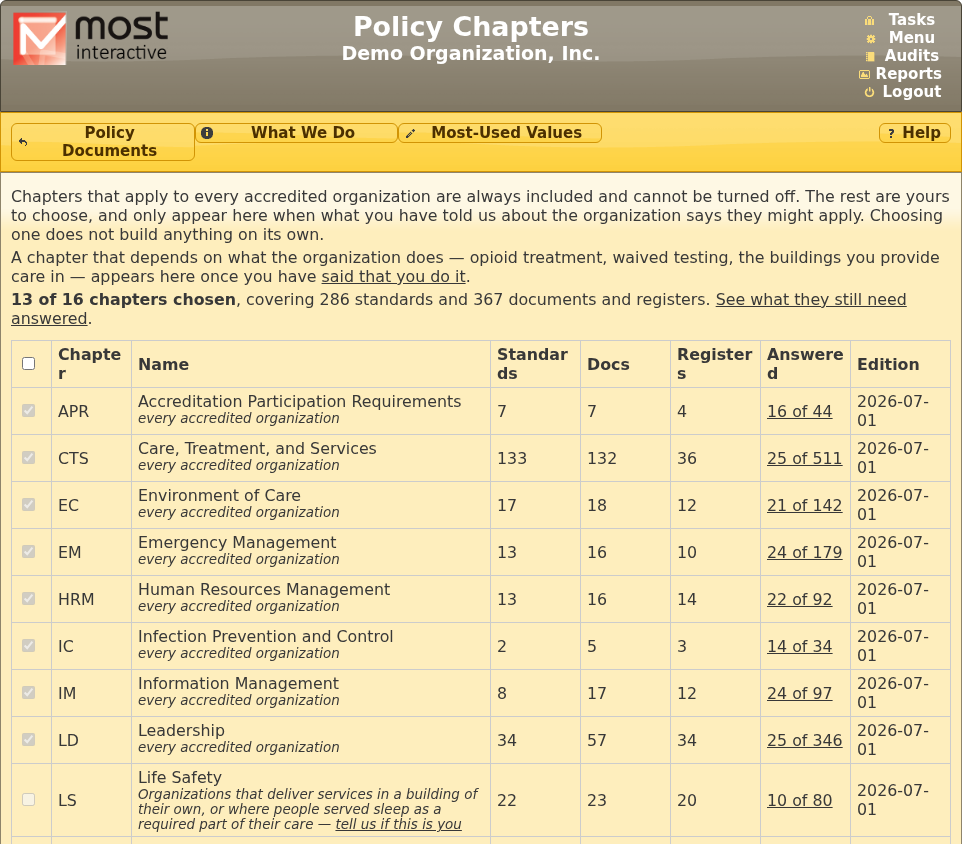
Chapters that apply to every accredited organization are always included and cannot be turned off. The rest are yours to choose, and only appear when what you have told MOST™ about the organization says they might apply: a chapter that depends on what the organization does (opioid treatment, waived testing, the buildings you provide care in) appears once you have said that you do it. Choosing a chapter does not build anything on its own.
9.7 Downloading Documents and Registers
Document downloads the chapter as a Word document. A document is built from your values as they stand when you press the button, so download it again after you change an answer.
Registers opens the list of workbooks the chapter asks you to keep. Download them one at a time, or all together as a zip file with Download all.
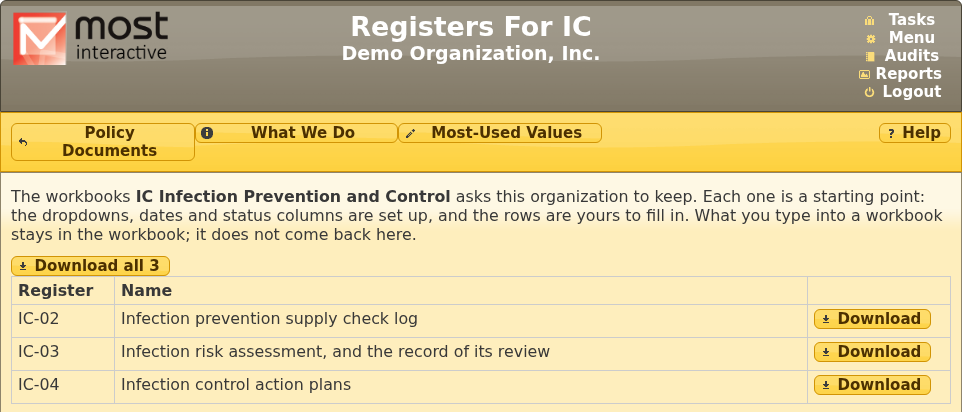
Each workbook is a starting point: the dropdowns, dates and status columns are set up, and the rows are yours to fill in. What you type into a workbook stays in the workbook; it does not come back into MOST™.
9.8 When a New Edition Arrives
For CARF, the policy documents follow the edition your organization has switched to, and change only when it switches (see CARF Editions). For the Joint Commission, the policy documents follow the edition of the standard in effect. When a new edition is installed ahead of the day it takes effect, policy admins see a message, and the Policy Documents page shows what the edition means for your documents: documents added, retired or changed, values to revisit, and workbooks to rebuild, with your chosen chapters first. Until the date it takes effect, your documents are built from the edition in effect. The summary is shown from when the edition is installed until 90 days after it takes effect, and stays available from a link after that.