
This is an earlier version. The current manual is v7.5.0.
7 Workflows and the Task List
7.1 Workflows
MOST™ supports several workflows described below:
7.1.1 Unmanaged Audits
An unmanaged audit will name one more reviewers but no manager.
Reviewers add ribbons and answer questions. When all questions are answered the Finished button (
 ) is enabled. Clicking on that button will result in the audit’s status being moved from “Created” to “Completed”.
7.1.2 Passively Managed Audits (no review required)
Passively managed audits will name an audit manager in addition to naming at least one reviewer. The “Review Required” checkbox is left unchecked.
The audit manager and reviewers can modify the audit. When all questions have been answered the Finished button (
) is enabled. Clicking on that button will result in the audit’s status being moved from “Created” to “Completed”.Specifying a manager will allow the named manager to view progress and participate in the auditing process without them being named as a reviewer.
An organization can name a default manager who is named by default for each audit. Requests to name a default manager are submitted by sending email to help@mostaccess.com.
7.1.3 Actively Managed Audits (review required)
Actively managed audits will name an audit manager in addition to naming at least one reviewer. The “Review Required” checkbox is checked.
The audit manager and reviewers can modify the audit. When all questions have been answered the Finished button (
) is enabled. Clicking on that button will result in the audit’s status being moved from “Created” to “Submitted for Review”. Likewise, the audit status change will automatically be populated in the audit manager’s Task List.An audit that has been submitted for review will remain in that state until the manager visits the audit and clicks the “Needs Work” button (
 ) or the “Approved” button (
 ).
).Clicking the “Needs Work” button will set the status of the audit to “Reviewed/Needs Action” and will put the status change into the Task List of all audit reviewers.
Clicking the “Approved” button changes the status of the audit to “Completed” and removes the audit from the Task List of the manager and the reviewers.
An organization can name a default manager who is named by default for each audit. Requests to name a default manager are submitted by sending email to help@mostaccess.com.
7.2 The Task List
7.2.1 Tasks
When a user first logs into MOST™ they are taken to their personal Task List. The Task List screen can be visited at any time by clicking the Tasks menu option ( ) in the menu that appears at the top-right of the screen of each page in the application. See section Listing Screens above for information on working with features common to many listing screens. The task list listing screen look like this:

IMPORTANT CONCEPT: Tasks are shortcuts to audits. The task list shows tasks--not audits. Archiving a task has no effect on audits. The purpose of the task list is to help users keep track of unfinished work.
The task list is automatically populated and modified based on actions in the system. In addition a user can manually manage the task list by archiving tasks using the trash can icon ( ). Previously archived entries can be restored by clicking the View Archived button (
 ) and then clicking the corresponding restore icon (
 ).
).
Entries are automatically added to a user’s task list when:
The user has been added to an audit as a reviewer or manager.
The user is a reviewer of an audit that a manager has indicated as “Needs Work”.
The user is a manager of an audit that is marked as “Needs Review”
Entries are automatically removed from a user’s task list when:
An audit for which the user is a reviewer or manager has been marked as “Completed”.
An audit for which the user is a reviewer has been “Submitted for Review”
An audit for which the user is a manager has been marked as “Needs Work” or as “Completed”
A user can have a notification email sent to them when an item is added to their task list by clicking the Menu button ( ) and selecting “Preferences”.
7.2.2 The Wait List
In workflows that make use of a manager the wait list will show audits that have been assigned to others but have not been completed. As with the task list, items on the wait list are managed by the application but can be manually removed as needed.
7.2.3 System Messages
When you log in you may be greeted with system messages. Typically these messages are used to convey new features of the software or to notify organization administrators of updates to standards. The screenshot below provides an explanation of the message system in its own words. Notice that one message has been marked as read and, therefore, shows only the title.
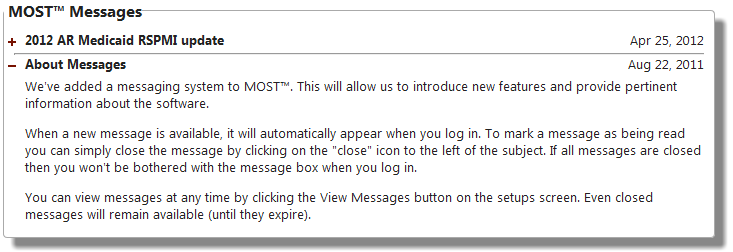
If all messages have been minimized then the messages will be hidden by default when a user logs in.