
This is an earlier version. The current manual is v7.5.0.
5 Working with Question Sets
Only organization admins and question admins can work with question sets and custom questions. Question sets are groups of questions based on questions from a provided standard or based on custom questions (or both). Once a question set has been established it is reused in as many audits as needed. Although question sets can be modified it is common for them to remain substantially the same once they are in use.
5.1 Question Sets
5.1.1 Question Set Listing Screen
See section Listing Screens above for information on working with features common to many listing screens. The question set listing screen is launched by:
If necessary, click on the Menu link (
 )
)Click on the Question Sets button from the Menu page.
An example list might look like this:

One of these question sets is based on a system-provided standard and the other is coming from custom questions. Question Set Types are configurable categories for organizing question sets. These categories are used for grouping and filtering in several of the reports. These types can be created, removed, and renamed by clicking on the Manage Types button.
The Fee for Service value is optional and would be used in cases where the question set pertains to a chart review for a specified service (e.g., psychotherapy) that has a customary fee associated with it. The value provided here simply serves as a default value that can be overridden in an actual audit. Some reports allow estimation of risk of recoupment for services that fail to meet a given compliance rate.
When a question set is marked as available it will appear as an option when creating an audit. When a question set is being modified it is automatically marked as unavailable to prevent other users from accessing an incomplete/unfinished question set.
The available actions for each question set are:
 to modify a question set
 to toggle availability of the question set
 to print a question set
 to archive a question set
5.1.2 Creating/Modifying a Question Set
When creating a question set you will need to specify the standard from which the questions will be drawn. If the question set will contain only custom questions then indicate Custom Questions Only from the drop-down. When later modifying a question set the standard on which the question set is based cannot be altered. An example of modifying a question set can look like this:
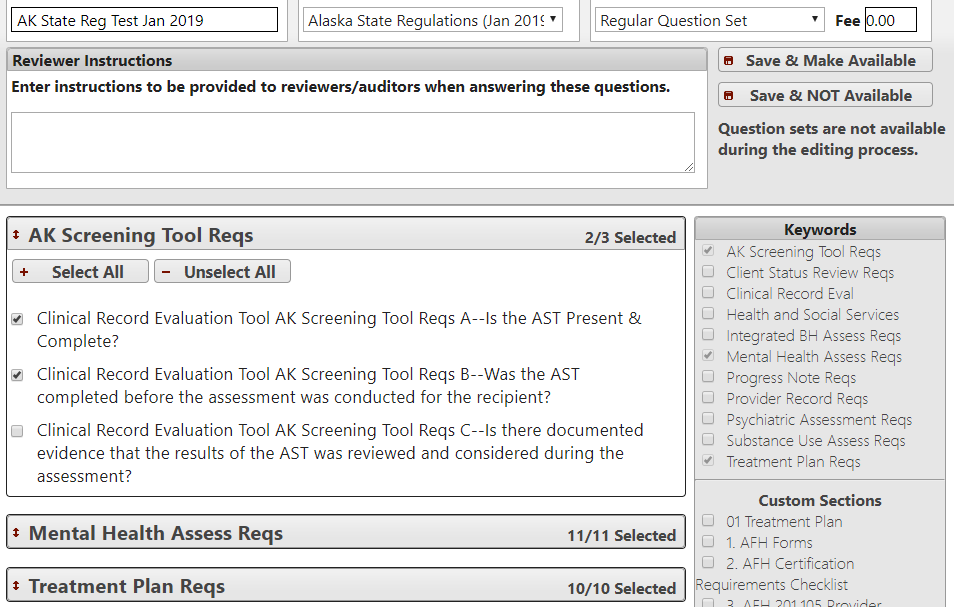
Clicking on the checkboxes to right will bring in groups of questions in ribbons according to associated keywords or section names. Individual questions can then be selected for inclusion/exclusion as needed. When finished identifying questions click one of the save buttons at the top right.
5.1.3 Printing a Question Set
The print icon provides a convenient way to launch the report interface for printing a question set. For details of report options See the Printable Question Set Report section below.
5.2 Custom Questions
Many organizations make extensive use of the ability to create custom questions for compliance. As a compliance platform, MOST™ requires that all questions have yes/no answers where “yes” indicates compliance and “no” indicates non-compliance.
See section Listing Screens above for information on working with features common to many listing screens. The custom question listing screen is launched by:
If necessary, click on the Menu link (
)Click on the Questions button from the Menu page.
An example list:
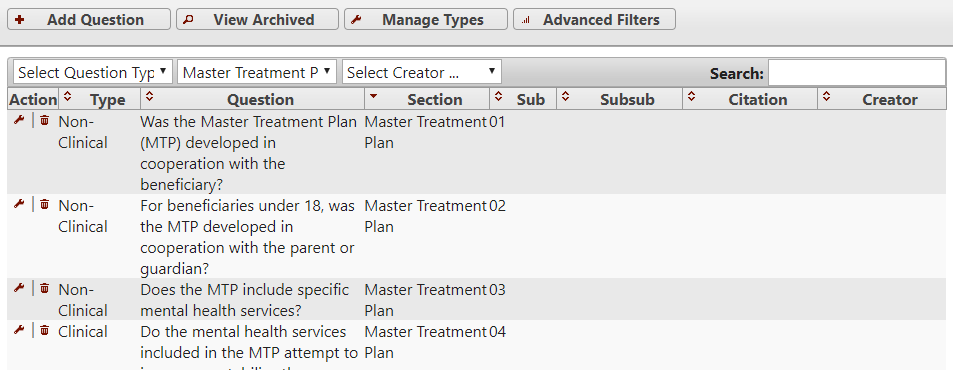
The question type is used primarily as an organizational aid when there are a large number of custom questions. The types are configurable via the Manage Types button. The “Clinical” type cannot be changed or removed as some reports segment results according to clinical and non-clinical questions.
The drop-down boxes are provided via the Advanced Filters button. These filters can be used together to shrink the list of questions to a manageable size. NextStep-integrated customers have an additional drop-down that allows selection of questions from standards. Although the text of such questions cannot be modified, they can be linked to a specific form/question in the EMR to provide convenient lookup when auditing a chart.
When creating/editing a question the following form is presented:
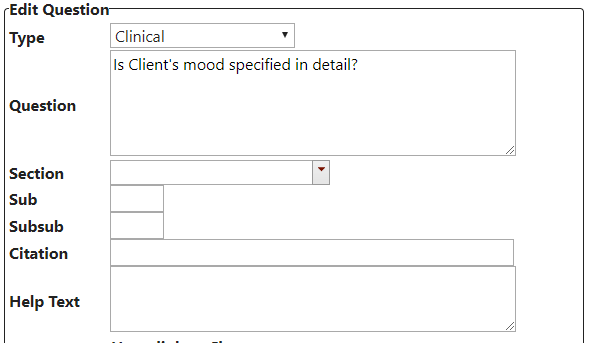
The question field must have a yes/no answer where “yes” indicates compliance and “no” indicates non-compliance.
The section field is especially significant as the questions are grouped by section name when working with question sets. When a question set is used in an audit questions are ordered first by section, then by subsection, then by subsubsection. For this reason it is common to use numbering in subsection (or subsubsection). NOTE: These fields are not numeric types so you will need to include leading zeros as demonstrated above if you have more than 9 questions in a single section.
The citation field can be used to specify a standard or other reference to which the question pertains. The citation is optionally included with questions in some reports.
The help field, when used, will cause a question mark icon to appear beside this question when it appears in a ribbon. Clicking the icon will cause the help text to appear. This is useful for providing additional guidance on answering a question without cluttering the question itself.
NextStep-integrated customers have an additional form attached to each question as follows:
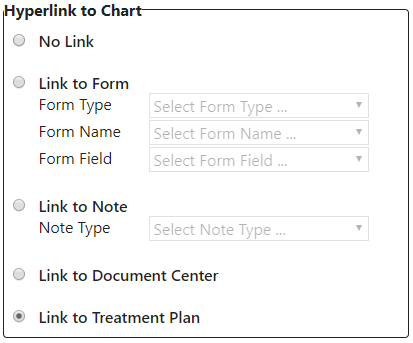
This allows a question to be tied to a specific field, note, or treatment plan in the EMR. Questions that have a link specified in this way will display a link icon beside the question. When the icon is clicked a window to the specified item in the EMR is opened.
5.3 Questions from Standards
Some organizations pay for access to questions based on standards. Some standards currently available are: Joint Commission, CARF, and COA. Contact help@mostaccess.com if your organization has interest in using questions from these or other standards.