
This is an earlier version. The current manual is v7.5.0.
5 Working with Question Sets
Only organization admins and question admins can work with question sets and custom questions. Question sets are groups of questions based on questions from a provided standard or based on custom questions (or both). Once a question set has been established it is reused in as many audits as needed. Although question sets can be modified it is common for them to remain substantially the same once they are in use.
5.1 Question Sets
5.1.1 Question Set Listing Screen
See section Listing Screens above for information on working with features common to many listing screens. The question set listing screen is launched by:
If necessary, click on the Menu link (
 )
)Click on the Question Sets button from the Menu page.
An example list might look like this:

One of these question sets is based on a system-provided standard and the other is coming from custom questions. The Standard column names the version of the standard a question set is built on, for example Joint Commission (Jul 2026); see Question Sets and Versions of a Standard. Question Set Types are configurable categories for organizing question sets. These categories are used for grouping and filtering in several of the reports. These types can be created, removed, and renamed by clicking on the Manage Types button.
The Fee for Service value is optional and would be used in cases where the question set pertains to a chart review for a specified service (e.g., psychotherapy) that has a customary fee associated with it. The value provided here simply serves as a default value that can be overridden in an actual audit. Some reports allow estimation of risk of recoupment for services that fail to meet a given compliance rate.
When a question set is marked as available it will appear as an option when creating an audit. When a question set is being modified it is automatically marked as unavailable to prevent other users from accessing an incomplete/unfinished question set.
Import Question Set above the list offers ready-made question sets from the standards your organization uses; see Importing a Question Set.
The available actions for each question set are:
 to modify a question set
 to toggle availability of the question set
 to print a question set
 to archive a question set
5.1.2 Creating/Modifying a Question Set
When creating a question set you will need to specify the standard from which the questions will be drawn. A new question set is built on the version of that standard in effect. If the question set will contain only custom questions then indicate Custom Questions Only from the drop-down. When later modifying a question set the standard on which the question set is based cannot be altered by hand; moving a question set to a newer version of its standard is described in Question Sets and Versions of a Standard. An example of modifying a question set can look like this:
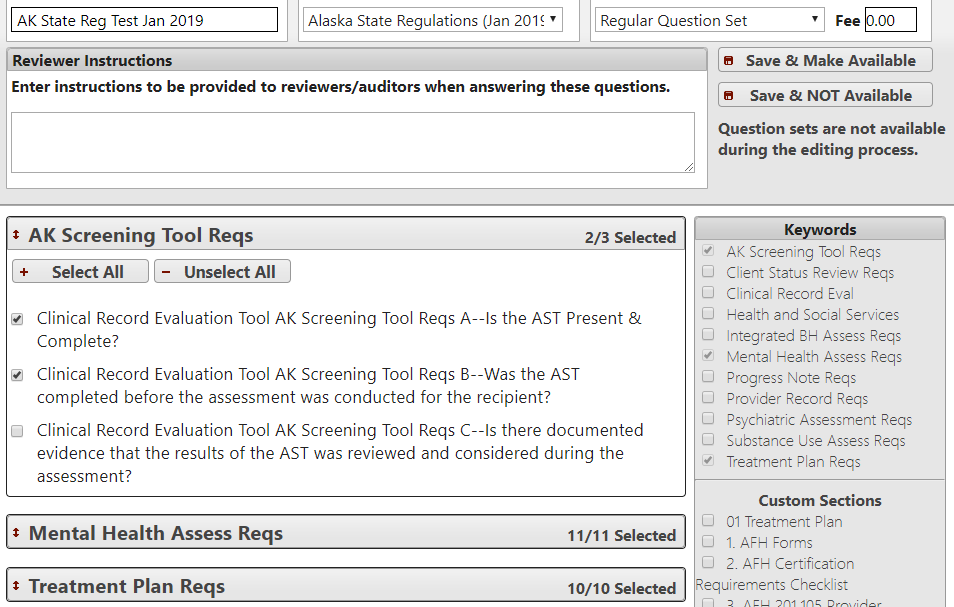
Clicking on the checkboxes to right will bring in groups of questions in ribbons according to associated keywords or section names. Individual questions can then be selected for inclusion/exclusion as needed. When finished identifying questions click one of the save buttons at the top right.
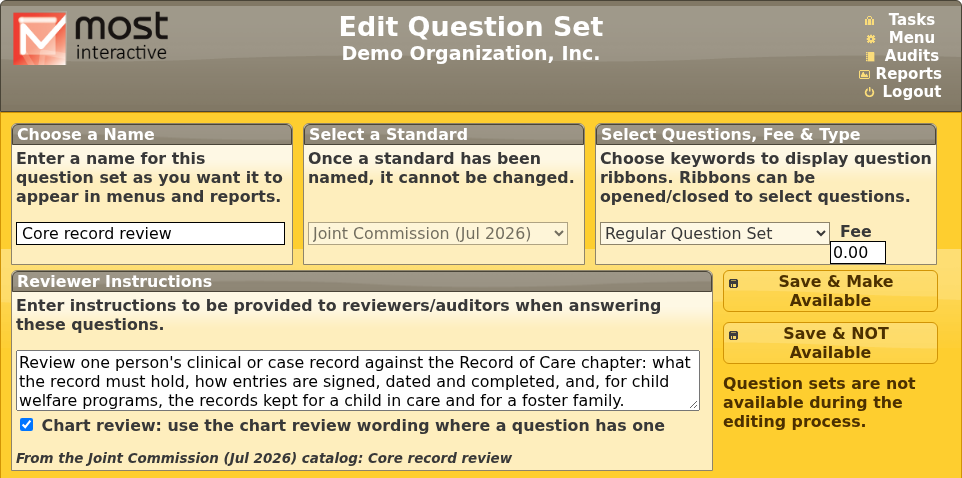
Under the instructions, Chart review marks the question set as one that reviews one person’s record at a time; see Chart Review. A question set imported from a catalog says which one under that box, for example From the Joint Commission (Jul 2026) catalog: Core record review:
5.1.3 Importing a Question Set
Instead of building a question set from scratch, you can import a ready-made one. Each standard that comes with MOST™’s policy library has a catalog of question sets for its edition:
Chart review sets check one person’s clinical or case record: what the record must hold, and how entries are signed, dated and completed. Each catalog has a core set, Core record review, and for many services a set of its own. Most service sets hold only what that service adds, and are meant to be used alongside the core set. CARF’s Outpatient Treatment record review is the exception: it includes the core questions and is used instead of the core set. Each set’s description says which it is.
Survey preparation sets cover one part of the manual, or one service or program, such as addictions, residential care or case management, to prepare for a survey.
Click Import Question Set on the Question Sets list. The catalogs are grouped by the standards your organization uses, each at the edition your organization works from:
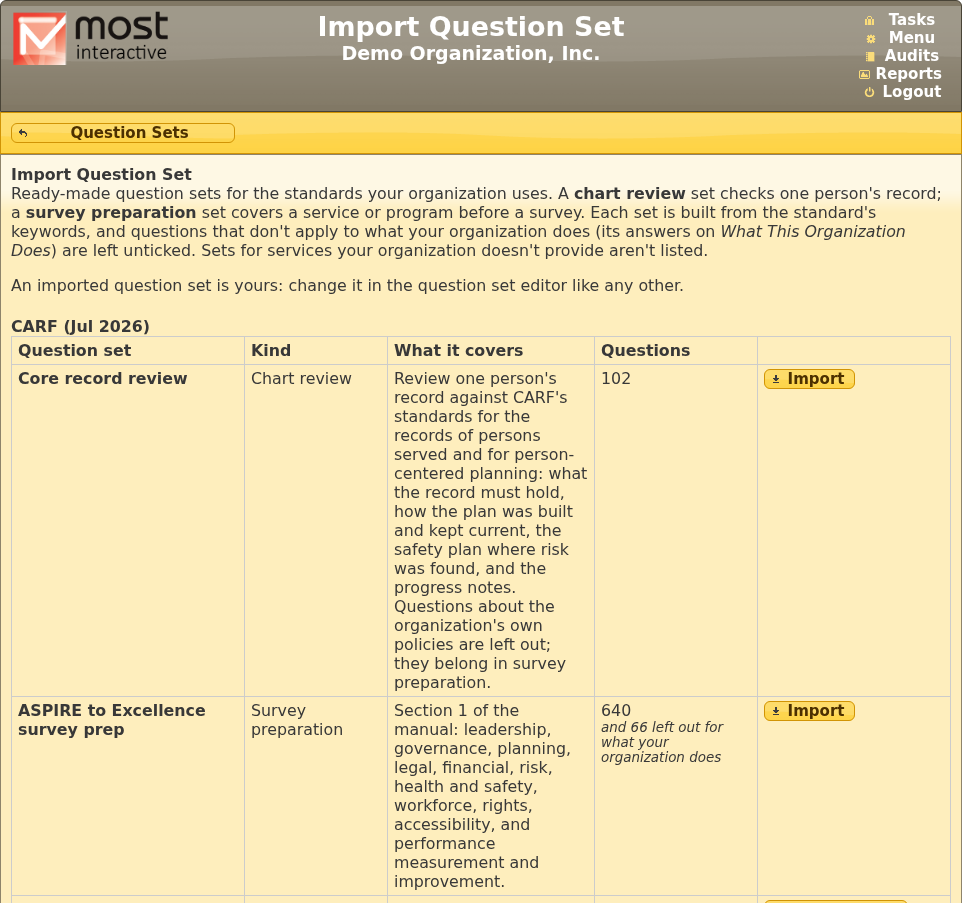
The list fits your organization. It is built from your answers on What This Organization Does (see What This Organization Does):
A set for a service your organization doesn’t provide is not listed at all.
Questions shows how many questions the set would ask, and how many more are left out because they don’t apply to what your organization does.
If some of those answers haven’t been given yet, the page says so, with a link to give them. Nothing is left out for an unanswered activity, so answer them first if you want the set to fit.
Click Import to see the set and name it:
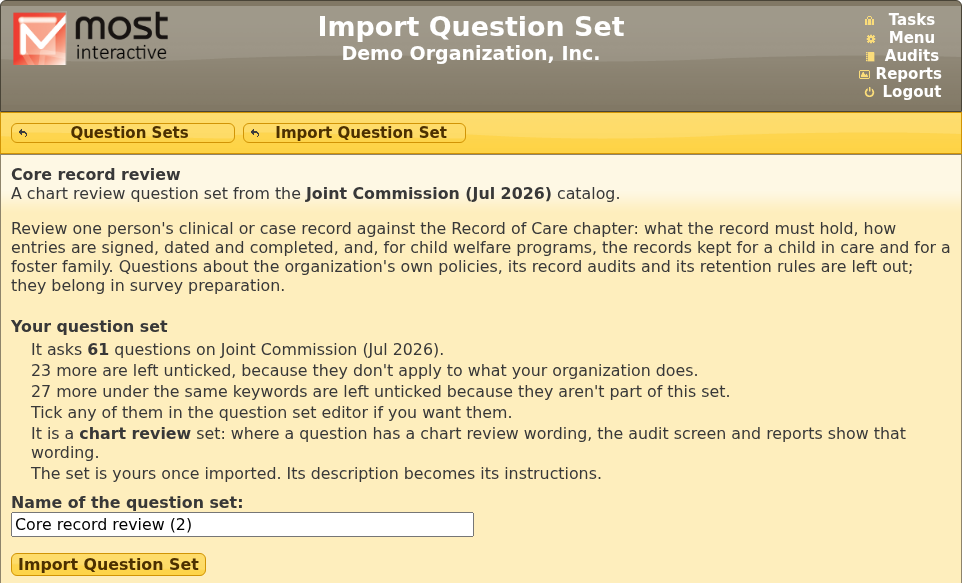
The name starts as the catalog’s; change it as you like, then click Import Question Set. The new question set is yours, exactly as if you had built it:
Questions that don’t apply to what your organization does are unticked, and so are questions under the same keywords that aren’t part of the set. Tick any of them in the question set editor if you want them.
The set’s description becomes its instructions.
It is not available for audits until you open it in the editor and save it as available.
A set can be imported more than once, under different names. The list shows each set you have imported from it, and when.
When your answers change. If your answers on What This Organization Does change after you import a set, the Import Question Set page says how the set would differ now: how many questions would now be included, and how many left out. Replace it with a fresh import rebuilds it from the catalog and your answers today. It stays the same question set, with the same name, instructions and availability, so reports that cover it carry on across the change, and audits already performed keep their questions. Anything you changed in the set since the import is discarded, and the page says how much before you confirm.
When the standard changes. An imported set moves to a new edition like any other question set (see Question Sets and Versions of a Standard). New questions that the catalog leaves out, or that don’t apply to what your organization does, arrive unticked; what you had chosen stays as it was. The Standards Dashboard says how many before a move or a promotion.
Importing needs the question admin right, as building any question set does.
5.1.4 Chart Review
A chart review reviews one person’s record at a time. Many of a standard’s questions are written about records in general, for example Do only authorized staff members make entries in the clinical/case record? For chart review, the standard can provide a second wording of the same question, written about the one record in front of the reviewer: Were all the entries in this record made by staff authorized to make them?
A question set marked Chart review (in the question set editor, or imported from a catalog as a chart review set) uses that wording:
On the audit screens, desktop and mobile, each question that has a chart review wording shows it:
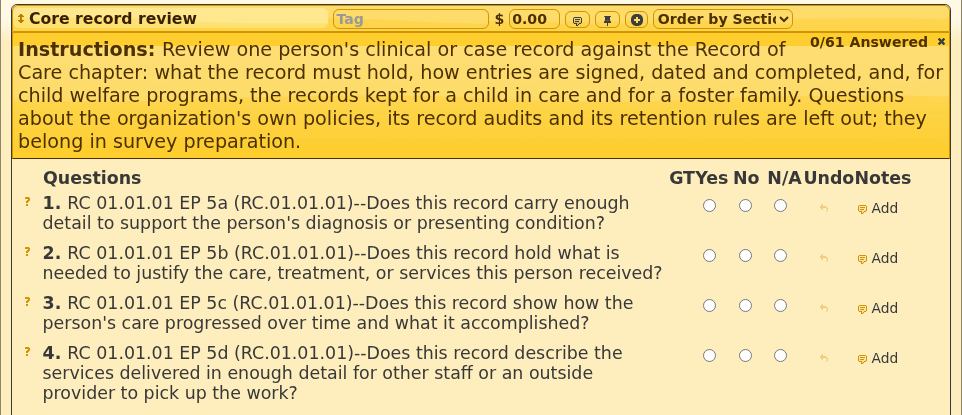
The Audit Detail and Multi-Audit Detail reports and the printable question set show the same wording.
Answer Totals and the Question Set Detail report show the chart review wording when every audit they cover was a chart review, and the question itself when they mix the two.
An audit keeps the setting its question set had when the audit began, so changing it later doesn’t change how earlier audits read. It is the same question either way, with the same answers and reports; only the wording shown differs.
5.1.5 Question Sets and Versions of a Standard
Standards are revised. In MOST™ each revision of a standard is a new version (the Joint Commission calls them editions), and each version takes effect on a date. We install each new version ahead of time; nothing about your question sets or audits changes until the date it takes effect. You are surveyed to the standard in effect on your survey date, and so are your audits.
For standards that update on a schedule (the Joint Commission today), question sets work like this:
Question sets that follow the standard update themselves. A question set built on the version in effect, or moved to it, follows the standard. The night a new version takes effect, it moves to that version by itself. It keeps its name, fee and instructions, and everything you chose: questions you added by hand stay, and questions you left out stay out. Questions the standard retires leave the set, and new questions under the set’s keywords join it.
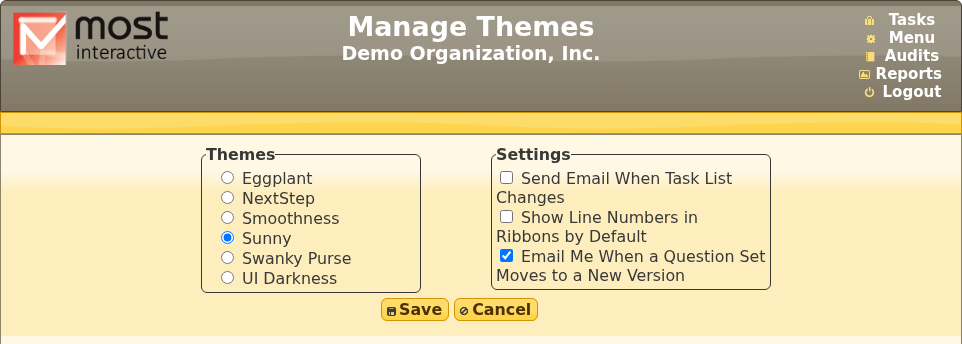
You are told. When a question set moves, your organization admins and question admins see a message when they log in and are emailed a summary. The email can be turned off with Email Me When a Question Set Moves to a New Version in Preferences (Menu > Preferences):
Audits and reports are not disturbed. An audit already started or finished keeps its questions, answers and notes. Reports cover every version of the standard without you choosing one, so a year’s report stays whole across a change.
Older question sets stay where they are until you move them. A question set on an older version keeps working, but it does not update. The Standards Dashboard shows each one, what moving it to the version in effect would change, and what we recommend. Once moved, it follows the standard from then on.
CARF works differently: nothing changes by date, and your organization chooses its edition. See CARF Editions.
5.1.6 The Standards Dashboard
Organization admins, question admins and policy admins in an organization that uses the Joint Commission or CARF have the Standards Dashboard. Policy admins see it but do not move question sets. To open it:
If necessary, click on the Menu link (
)Click on the Standards button in the Questions and Tools box.
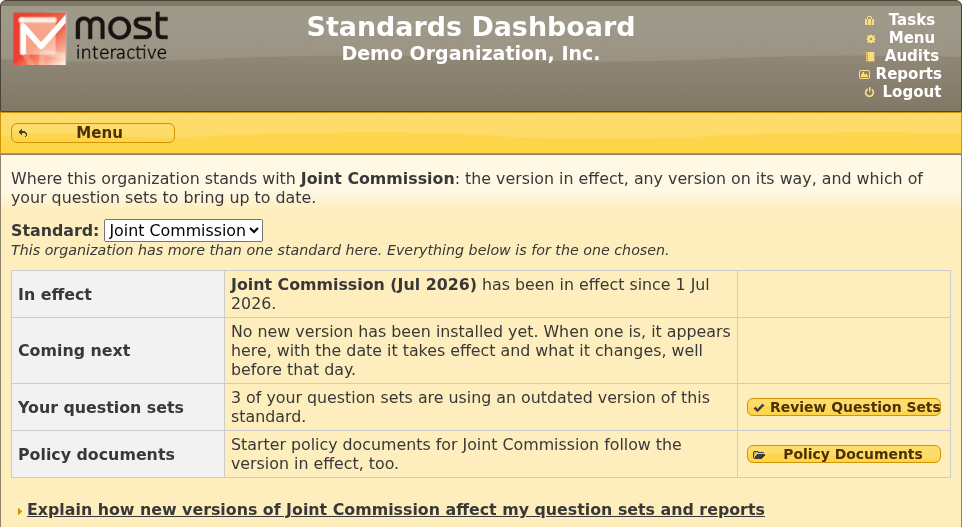
If your organization uses more than one of these standards, choose one from the Standard dropdown at the top; everything below it is for the one chosen. The page opens on the Joint Commission. For CARF, see CARF Editions.
The dashboard shows where your organization stands with the standard:
In effect: the version in effect and the date it took effect.
Coming next: a version installed ahead of the day it takes effect, with that date, and how many of your question sets will move to it that night, and how hard each move will hit them: little, moderate or severe. See What Changes opens a summary of what the new version changes, written in plain words (from the Joint Commission’s 1 Jan 2027 edition on): the headline changes, what to start doing and what stops, and each chapter’s standards that are new, withdrawn, renumbered or changed, beside the count of questions carried over, retired and new. When a new version is installed ahead of its date, organization and question admins see a message pointing to the dashboard.
Your question sets: whether any of your question sets are on an outdated version. Review Question Sets lists them.
Policy documents: the starter policy documents follow the version in effect, too (see Policy Documents).
The link at the bottom, Explain how new versions affect my question sets and reports, opens the same explanation given above.
Review Question Sets lists your question sets built on the standard, and what the next change to each would do. Questions shows how many a set asks today and, where a change is coming, how many it would ask after (your own questions included).
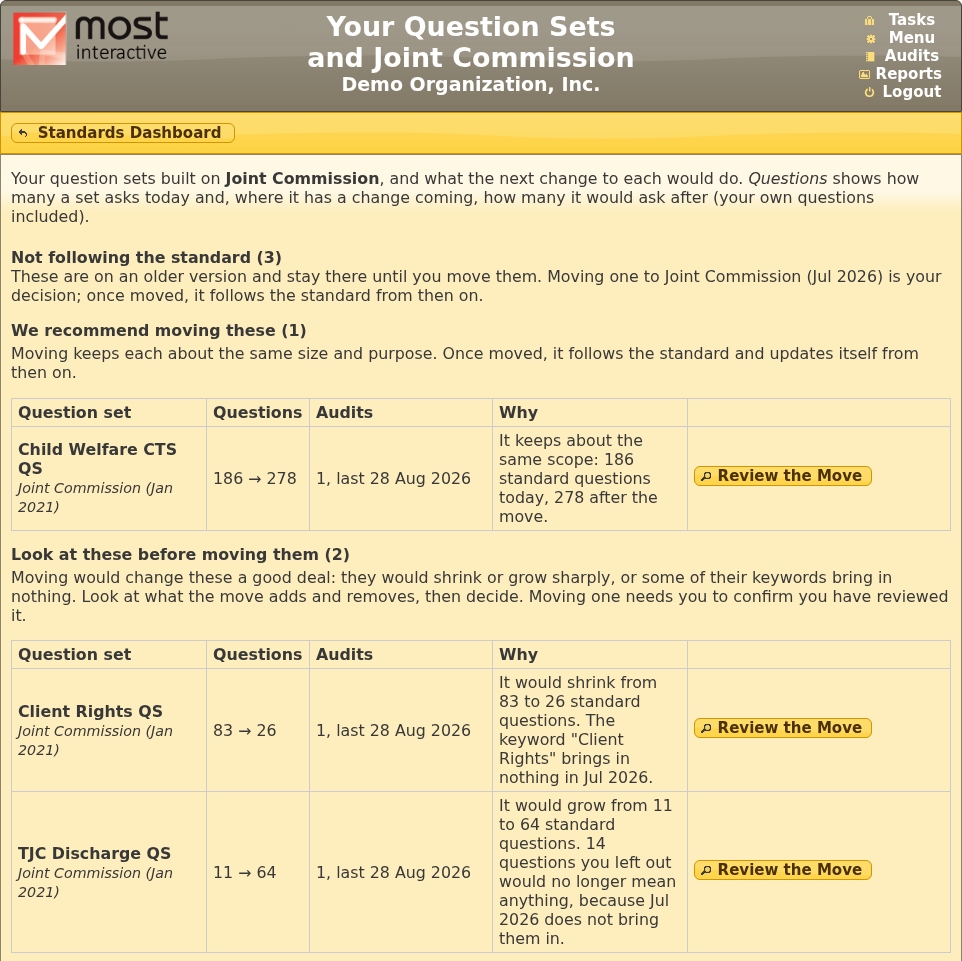
Question sets that do not follow the standard are grouped by our recommendation:
We recommend moving these: moving keeps each about the same size and purpose.
Look at these before moving them: moving would change these a good deal. They would shrink or grow sharply, or some of their keywords would bring in nothing. Look at what the move adds and removes, then decide. Moving one of these needs you to confirm you have reviewed it.
Review the Move shows what moving a question set would add and remove, and moves it when you confirm. A move that would leave a question set with none of its standard questions is refused; build a new question set instead.
Question sets that follow the standard are listed as Up to date. View History beside a question set lists every move it has made and each question each move added and removed. (It replaces the Standard Updates screen of v7.1.)
Menu at the top left returns to the Menu.
5.1.7 CARF Editions
CARF publishes a new manual each year, and you are surveyed against the one your survey falls under. So in MOST™ your organization works from the CARF edition it has chosen, and nothing changes by date. When we install a newer edition, it is shown on the Standards Dashboard, and your organization switches to it when its survey calls for it, before or after the date it takes effect. A newer edition being available is not, in itself, a reason to switch.
Choose CARF from the Standard dropdown on the Standards Dashboard:
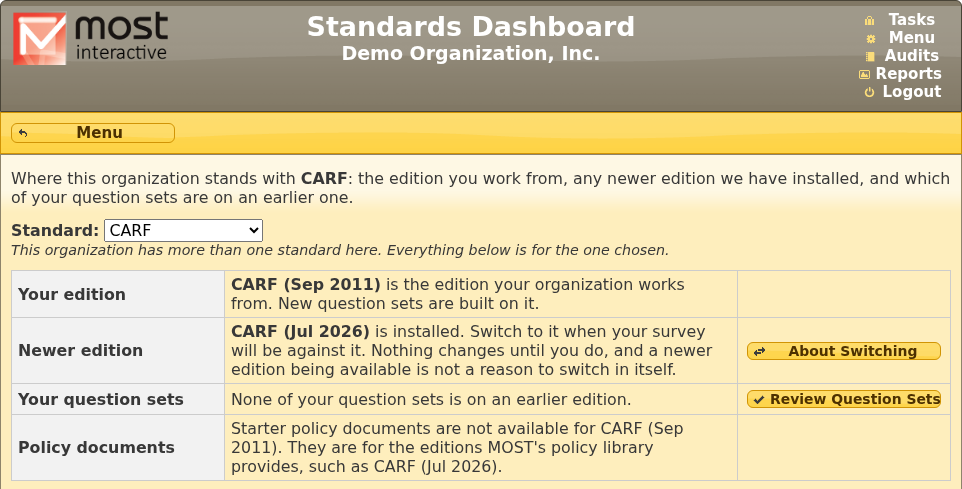
Your edition: the edition your organization works from. New question sets are built on it, and the policy documents follow it.
Newer edition: an edition installed after yours. About Switching explains what switching means and lets you switch.
Your question sets: how many of your question sets are on an earlier edition than yours, or on a later one.
Policy documents: starter policy documents for your edition, where MOST™’s policy library provides them.
When your organization started with CARF in MOST™, it was set to the edition of its most recent CARF audit.
5.1.7.1 Switching to a Newer Edition
Organization admins and policy admins switch. About Switching shows when to switch, what the newer edition changes, what happens to your question sets and policy documents, and the answers on What This Organization Does that decide which parts of the manual apply to you, so you can check each is still right. Tick the box to say you have read it and your survey will be against the new edition, then click Switch.
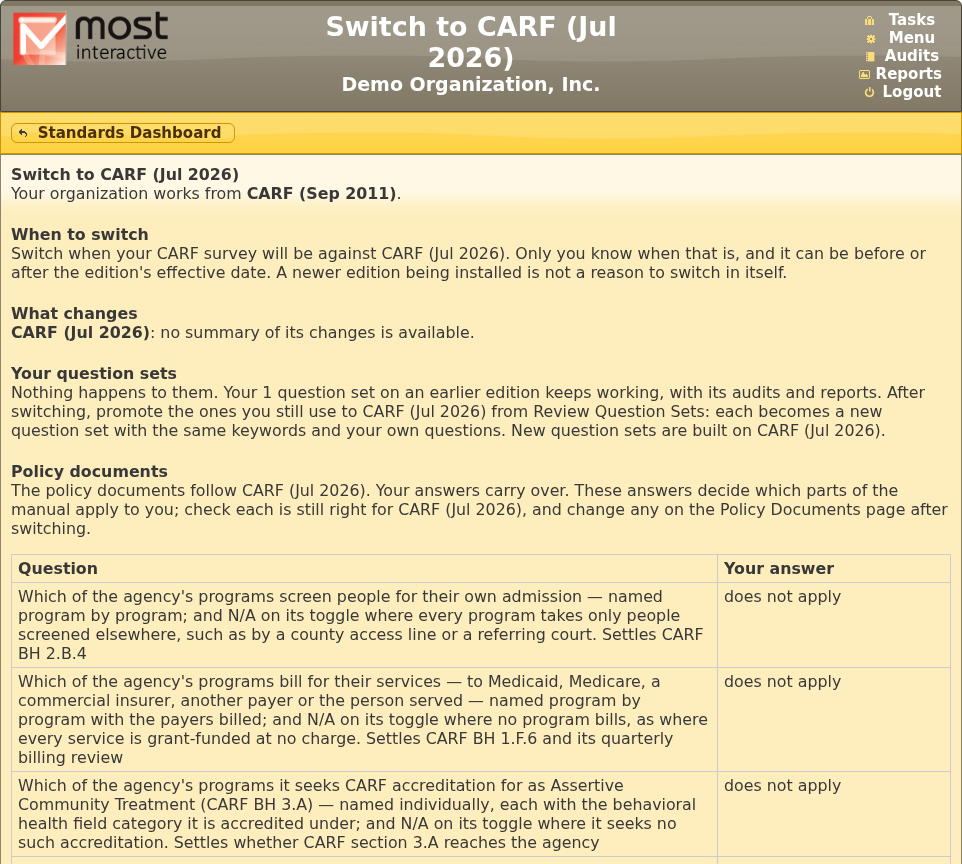
Switching changes what you build on: new question sets are built on the new edition, and the policy documents follow it. Your answers on the policy documents carry over. Nothing happens to your question sets: they stay on their edition and keep working, with their audits and reports. Organization, question and policy admins see a message saying the organization switched, and the switch is in the activity log.
5.1.7.2 Promoting a Question Set
Each CARF edition has its own wording, citations and help, so a question set is carried to a new edition by what defines it. Review Question Sets lists your CARF question sets: those on an earlier edition than yours, those on your edition, those on a later edition (built before your organization switched back, for example), and archived ones. Beside each on an earlier edition, Promote shows what promoting it would do:
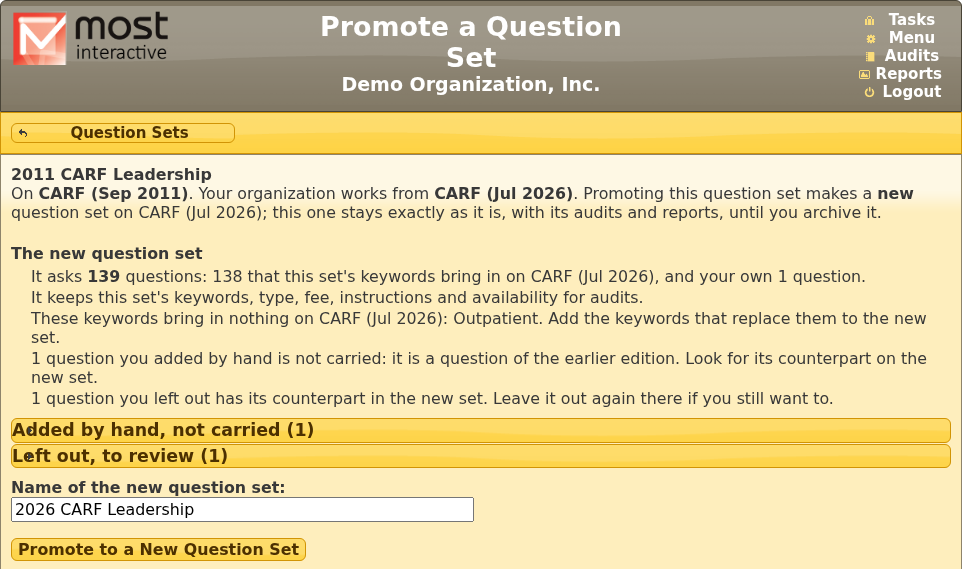
Promoting makes a new question set on your edition with the same keywords, type, fee, instructions and availability, the questions those keywords bring in on your edition, and your own questions. A question set imported from a catalog is promoted as a fresh import would be: questions the new edition’s catalog leaves out, or that don’t apply to what your organization does, are unticked, and the page says how many. The page lists what to review on the new set:
keywords that bring in nothing on your edition, usually because the edition renamed them;
questions you had added by hand, which are not carried because they were questions of the earlier edition;
questions you had left out, whose counterparts are in the new set.
The new question set’s name starts as the old one with the year changed: 2025 CARF Medication Management becomes 2026 CARF Medication Management. Change it as you like before clicking Promote to a New Question Set. The old question set is left exactly as it is, with its audits and reports; archive it under Question Sets when you no longer use it. A question set whose keywords bring in nothing on your edition cannot be promoted; build a new one instead.
Promoting needs the question admin right, as building any question set does.
5.1.8 Printing a Question Set
The print icon provides a convenient way to launch the report interface for printing a question set. For details of report options See the Printable Question Set Report section below.
5.2 Custom Questions
Many organizations make extensive use of the ability to create custom questions for compliance. As a compliance platform, MOST™ requires that all questions have yes/no answers where “yes” indicates compliance and “no” indicates non-compliance.
See section Listing Screens above for information on working with features common to many listing screens. The custom question listing screen is launched by:
If necessary, click on the Menu link (
)Click on the Questions button from the Menu page.
An example list:
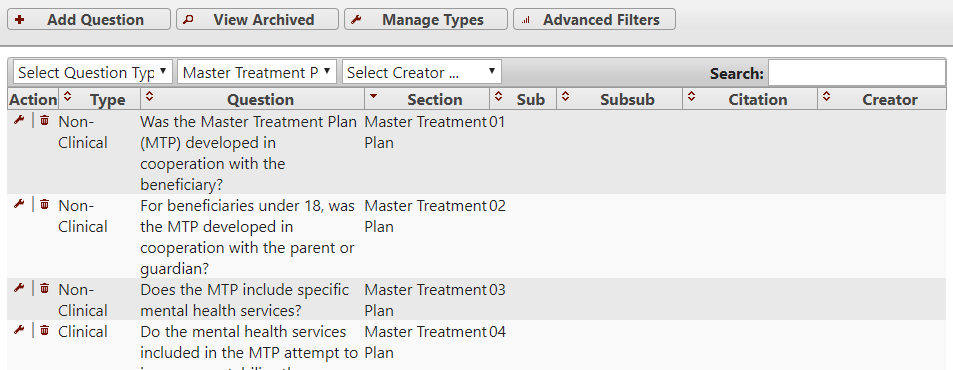
The question type is used primarily as an organizational aid when there are a large number of custom questions. The types are configurable via the Manage Types button. The “Clinical” type cannot be changed or removed as some reports segment results according to clinical and non-clinical questions.
The drop-down boxes are provided via the Advanced Filters button. These filters can be used together to shrink the list of questions to a manageable size. NextStep-integrated customers have an additional drop-down that allows selection of questions from standards. Although the text of such questions cannot be modified, they can be linked to a specific form/question in the EMR to provide convenient lookup when auditing a chart.
When creating/editing a question the following form is presented:
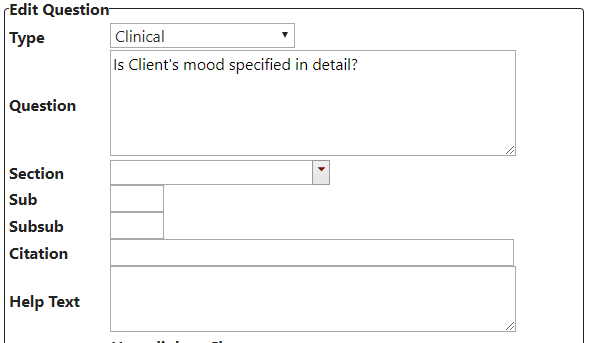
The question field must have a yes/no answer where “yes” indicates compliance and “no” indicates non-compliance.
The section field is especially significant as the questions are grouped by section name when working with question sets. When a question set is used in an audit questions are ordered first by section, then by subsection, then by subsubsection. For this reason it is common to use numbering in subsection (or subsubsection). NOTE: These fields are not numeric types so you will need to include leading zeros as demonstrated above if you have more than 9 questions in a single section.
The citation field can be used to specify a standard or other reference to which the question pertains. The citation is optionally included with questions in some reports.
The help field, when used, will cause a question mark icon to appear beside this question when it appears in a ribbon. Clicking the icon will cause the help text to appear. This is useful for providing additional guidance on answering a question without cluttering the question itself.
NextStep-integrated customers have an additional form attached to each question as follows:
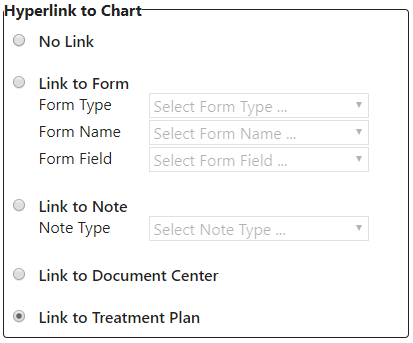
This allows a question to be tied to a specific field, note, or treatment plan in the EMR. Questions that have a link specified in this way will display a link icon beside the question. When the icon is clicked a window to the specified item in the EMR is opened.
5.3 Questions from Standards
You don’t have to start from a blank page. MOST™ maintains a library of questions (questions, not the standards’ legal text) written against the standards behavioral health organizations are surveyed on, and updated as those standards change. Organizations pay for access to the standards they use. The maintained question content currently covers:
Joint Commission: Behavioral Health, and Hospital
CARF
COA (Private)
State Medicaid requirements for a number of states, updated on request. Ask whether yours is covered.
Your own questions and question sets sit alongside the maintained ones: your policies, your contract requirements, the thing that went wrong last year and must never go wrong again. See Custom Questions. Contact help@mostaccess.com if your organization has interest in using questions from these or other standards.