
3 Account Management
User accounts in MOST™ are created by administrative action. For NextStep-integrated organizations these accounts are managed by NextStep and the instructions in this section do not apply.
3.1 Using an Account
Each account must be activated by the owner. Once the account is activated (and a password has been set) the user will be able to log in.
3.1.1 Activation
Once an account is created an activation email will be sent to the new user’s email address. The new user must activate his or her new account by:
- Click on the link inside the activation email.
This must be done within 10 days of its creation. The user will be prompted to set their password during the activation process.
3.1.2 Expired Activation
If a user fails to activate their account within 10 days then the link provided in the invitation email will no longer work. A new activation invitation can be generated by a user admin for the organization by:
If necessary, click on the Menu link (
 )
)Click on the Users button from the Menu page.
Click on the Email icon (
 ) beside the user to whom the invitation email is to be sent.
3.1.3 Forgotten Passwords
In the case of a forgotten password there are two ways to have the password reset. Both methods result in an email being sent to the user’s email address. The email contains a link that allows the user to choose a new password. The email can be generated by the user:
- At the login screen, click the Forgot Password link.
The email can also be generated by an organization administrator:
If necessary, click on the Menu link(
)Click on the Users button from the Menu page.
Click on the Email icon (
) beside the user to whom the invitation email is to be sent.
3.1.4 Locked Accounts
After seven wrong passwords, or wrong two-step sign-in codes, in 15 minutes, an account is locked for 15 minutes. The login screen says how long is left. The lock ends by itself; resetting the password (see Forgotten Passwords) ends it at once.
3.1.5 Logging Out
Users will be automatically logged out after 30 minutes of inactivity. When a user is finished using MOST™ for a period of time, it is recommended that they click the Logout link (
) in the upper right corner of the screen. This will prevent anyone else who has access to the computer from gaining access to their account.
3.2 Two-Step Sign-In
With two-step sign-in, MOST™ asks for one more thing after your password: the PIN, face or fingerprint you use to unlock your computer (a passkey), a security key such as a YubiKey, or a 6-digit number from an authenticator app on your phone. Someone who learns your password still can’t get in.
3.2.1 Who Needs It
Global and group administrators must use it. The first time they sign in without it, MOST™ asks them to set it up before going on.
Organization and user administrators are asked at each sign-in until 15 January 2027, and must use it after that date.
Question, report, list, log and policy administrators are asked at each sign-in until 15 February 2027, and must use it after that date.
Everyone else is asked at each sign-in, and may use it or not.
Users of NextStep-integrated organizations who open MOST™ from NextStep are not asked: NextStep has already signed them in.
3.2.2 Setting It Up
If necessary, click on the Menu link (
)Click on the Two-step sign-in button under Your Account. (When MOST™ asks you to set it up at sign-in, the same guide opens there.)
Choose a way, or I’m not sure. Help me choose.
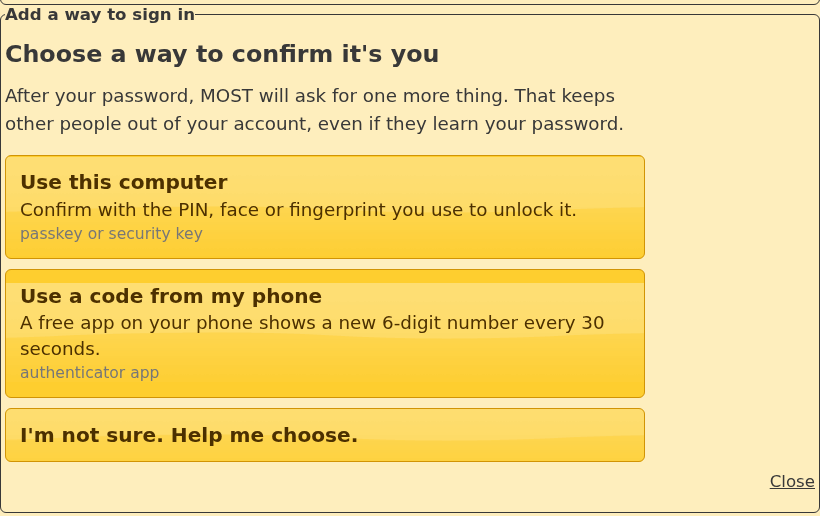
Use this computer sets up a passkey on the computer you are using. When you press Set up this computer, a box from your computer appears: on Windows, choose This Windows device if it asks where to save the passkey, then type your PIN or use your face or fingerprint, the same way you unlock the computer. To use a security key instead, plug it in, press the button, and choose Security key when the box appears; then touch the key. A passkey on a computer works only on that computer.
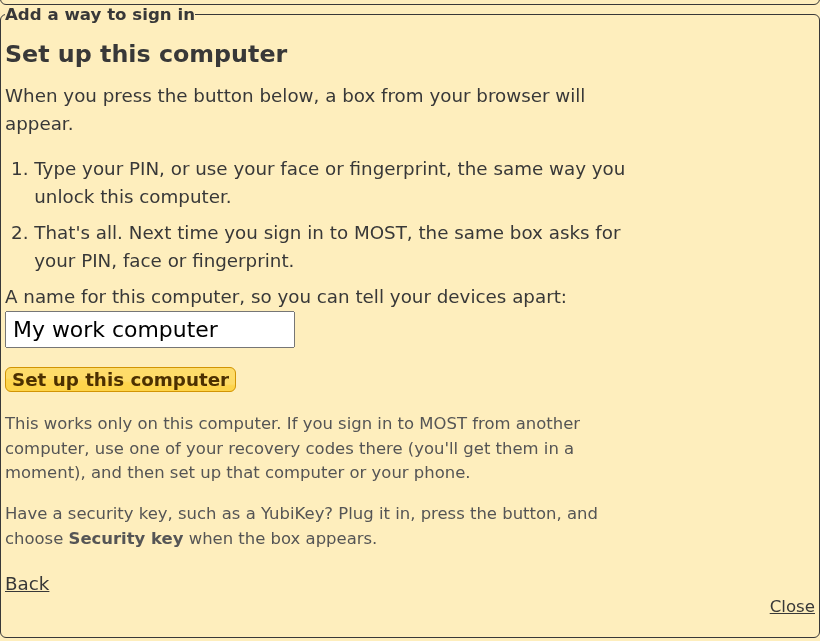
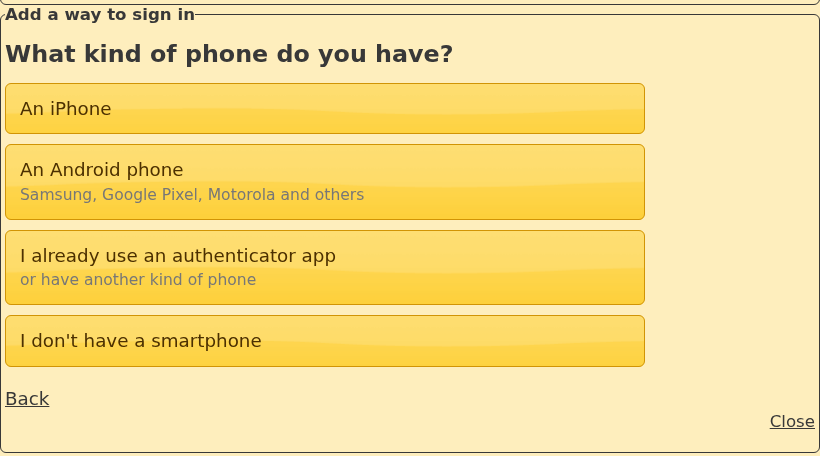
Use a code from my phone asks what kind of phone you have and shows the steps for it. An iPhone can do this by itself in its Passwords app; on an Android phone, install Google Authenticator from the Play Store. Any authenticator app works. Scan the square code MOST™ shows (or type the key under it), then type the 6-digit number the app shows.
When the first way is set up, MOST™ shows ten recovery codes. Each lets you in once, in place of your phone or computer, if you lose your phone or sign in from another computer. Print them or write them down and keep them with your important papers: they are shown only once.
3.2.3 Signing In
After your password, MOST™ asks for the way you used most recently. Links under it switch to another way you have set up, or to a recovery code. A wrong code counts toward the lock (see Locked Accounts).
If you sign in with a recovery code, MOST™ takes you to the Two-step sign-in page so that you can set up the computer or phone you are using, and won’t need another code next time.
3.2.4 Managing Your Ways to Sign In
Menu > Two-step sign-in lists the ways you have set up. Every change there asks for your password.
Add a way to sign in opens the guide again. Having a second way (a passkey on another computer, a security key, or your phone) means you are never stuck.
Move to a new phone moves your authenticator app to a new phone.
Remove removes one way. If two-step sign-in is required for you, your last way can’t be removed.
Make new recovery codes replaces your codes; the old ones stop working.
Turn off two-step sign-in is there only when it isn’t required for you.
Each of these changes, and a reset by an administrator, sends an email to your account’s address saying what changed. If you didn’t make the change, tell your administrator straight away: someone may know your password.
3.2.5 Lost Phone or Key
If you have lost every way to sign in, and your recovery codes, ask an administrator to reset your two-step sign-in (see Resetting Two-Step Sign-In). You then sign in with your password, and set it up again if it is required for you.
3.3 Creating and Managing Accounts
Only users with account management privileges can create all user accounts. Users with account management privileges include:
Organization admins (for organizations using the traditional permissions model)
User admins (for organizations using the CompliaTrac permissions model)
See section Listing Screens below for information on working with features common to many listing screens. The user listing screen is launched by:
If necessary, click on the Menu link (
)Click on the Users button from the Menu page.
General restrictions on creating and modifying accounts:
The owner of each account will need to be added as a person prior to having their account created.
Each account must have a valid, unique email address.
The username must be unique and cannot be easily changed once set.
Nobody can change their own permissions; another administrator does. On your own permissions page only your email address can be changed.
3.3.1 Permission Options for Traditional Permissions Model
Organizations that use the traditional permissions model can set permissions for accounts as follows:
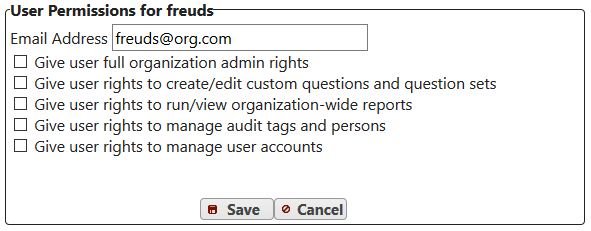
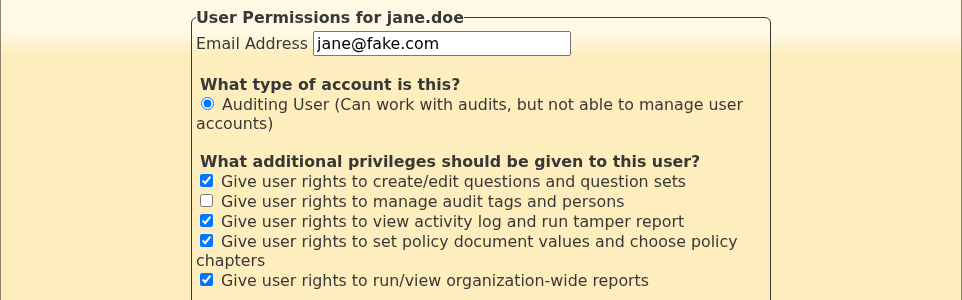
Assigning full organization admin rights will automatically provide all other rights. For non-organization admins the remaining rights can be granted or revoked individually. Only an organization admin can give or take away full organization admin rights; a user admin sees that box but can’t change it, and can’t change an organization admin’s permissions. The screenshot above predates two rights added in v7.0, which appear with the others:
Give user rights to view activity log and run tamper report
Give user rights to set policy document values and choose policy chapters
3.3.2 Permission Options for CompliaTrac Permissions Model
In the CompliaTrac permissions model accounts are designated mutually exclusively as user admin accounts or auditing accounts. Once the account type has been set it cannot be changed. User admins are also, by default, list admins. Either kind of account can also be given question, list, log and policy admin rights; only an auditing account can be given report admin. The permissions screen for an audit user looks like this:
3.3.3 Resetting Two-Step Sign-In
When a user has lost every way to sign in and their recovery codes, an administrator can reset their two-step sign-in:
Open the user’s permissions page from the Users listing screen. It shows Two-step sign-in: on with a Reset button.
Click Reset and enter your own password.
The user’s ways to sign in and recovery codes stop working. If two-step sign-in is required for them, their next sign-in asks them to set it up again; otherwise they can set it up when they choose. Organization admins and user admins can reset users of their own organization, except that only an organization admin can reset another organization admin’s. Nobody can reset their own. The reset is recorded in the activity log.
3.4 Searching the Activity Log
MOST™ maintains a detailed accounting log of who does what (and when). Viewing this detailed activity log is available to:
Organization admins (for organizations using the traditional permissions model)
User admins (for organizations using the CompliaTrac permissions model)
Any user given the right to view the activity log and run the tamper report (log admin), in either model
See section Listing Screens below for information on working with features common to many listing screens. The Activity Log Screen is launched by:
If necessary, click on the Menu link (
)Click on the Activity Log button from the Menu page.
The Activity Log Screen provides detailed information about many actions taken in the system down to the level of the time over every answer made in every audit (and who entered the answer). The log cannot be altered as it represents actions that have happened in the past. The logs take up quite a bit of space so they may be periodically archived securely off site. If archived logs are needed they can be retrieved by sending a request to help@mostaccess.com.
There are a variety of filters that can be applied to identify areas of interest:
Start and Stop Date These default to the previous six months. They can be narrowed or widened as needed to isolate a time frame of interest. All dates and times are provided in the time zone of your organization.
User Filter This can be applied to see only actions taken by a particular user.
Log Type Filter This filter is applied to categories of actions (like adding ribbons, or answering a question).
Audit Filter This filter intelligently identifies all actions taken on the selected audit including header changes, ribbon changes, and question-level data.
Search Filter This filter is used to apply a case-sensitive search string to any data logged by the system.
As with other listing screen the data can be sorted by any column.
3.4.1 Log Tampering Features
Each entry in the activity log carries an error detecting code calculated from the entry itself and from the entry before it, so an entry that is changed, removed, or inserted from outside the application breaks the codes from that point on. Once a day a copy of the latest code is saved outside the database, where it cannot be changed or deleted. Any entry that has been modified has a conspicuous error indicator on this screen, as shown here:
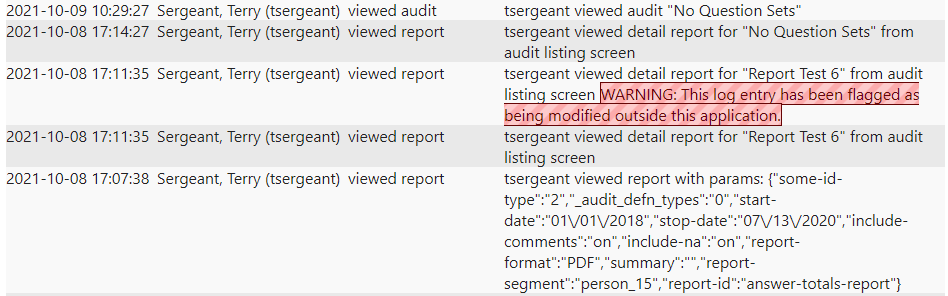
The “Tamper Report” button checks every entry in the log, compares the log with the saved copies, and reports any entries that were modified, removed, or inserted. The number of entries in the activity log can be large so it may take some time for the report to complete. It is unexpected for the report to indicate any findings. For that reason, a non-clean report should be reported to help@mostaccess.com.