
1 Start Here
1.1 Overview
MOST™ is a web-based application for tracking and documenting compliance with the standards an organization is held to. Most organizations find out where they stand from someone else: a surveyor, a payer, a complaint. MOST™ is how you find out first, by making it practical to audit yourself, all year, against the requirements that actually apply to you.
To that end the two primary functions of the application are auditing and reporting, and they make a cycle:
Build your question sets: the requirements you intend to check, in the words your staff use.
Audit against them: a reviewer answers each question Yes, No or N/A, adding comments and attaching evidence, on a desktop or on a phone.
Record what you find: answers, comments and reviewers are held against the audit, which carries its own date and its subjects (the program, location, provider or client being audited).
Report where you stand: reports show compliance by question, by standard, by program and over time.
Fix it, then audit again: re-run the audit and compare the reports. The change either shows up in the numbers or it doesn’t.
Audits are based on lists of questions which we call question sets. In some contexts question sets are referred to as “tools”. Questions can be created and managed within the application or they may be provided as part of a published standard (see Questions from Standards). An audit can include one or more question sets and identifies one or more subjects (persons or entities that are being audited).
Organizations that use the Joint Commission standards also have starter policy documents: a written policy for each chapter of the standard and the registers that go with it, built from what you tell MOST™ about your organization. See Policy Documents.
1.2 The Menu
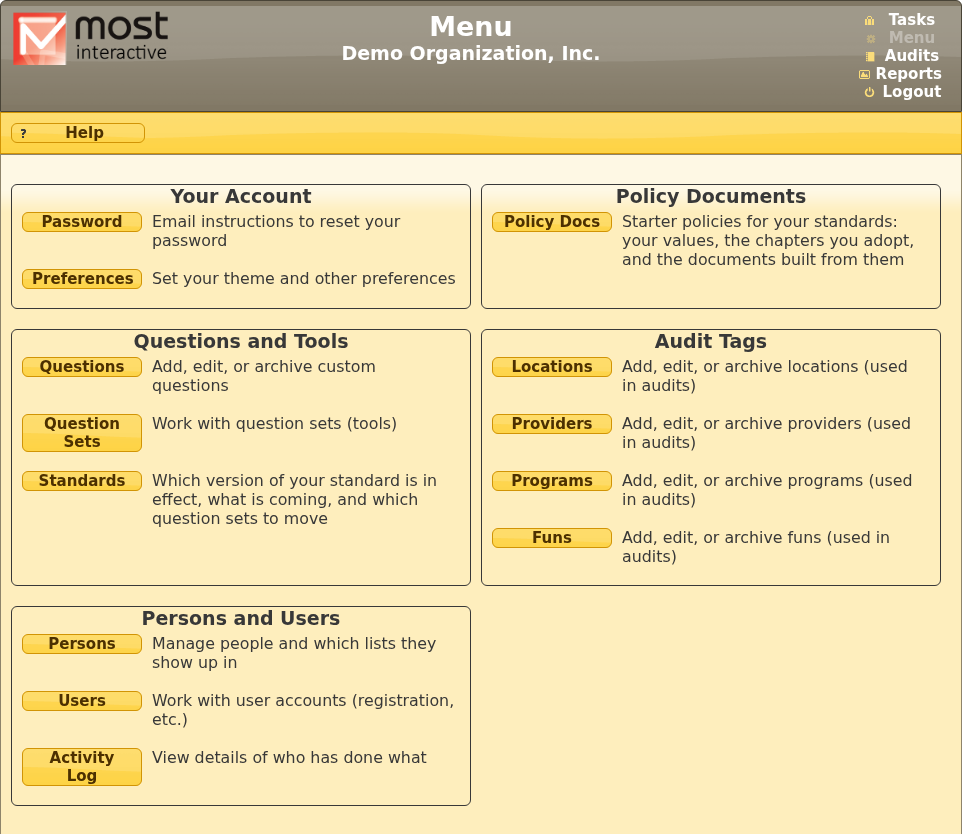
Most of the screens in this manual are reached from the Menu link in the top-right corner of every screen. The Menu shows only what your permissions allow, so yours may have fewer boxes than this one, which is an organization admin’s:
1.3 Getting Help
Sources of help/guidance (beyond this manual) when using/learning MOST™:
Help Button: Inside the application many screens provide a help button that displays a context-sensitive list of topics.
Your Local Admin: Each organization has one or more administrative users who were involved in the setup process and know how it is being used on site.
Website: General information is available at: https://www.mostaccess.com
Email: Still need help? No problem. Contact: help@mostaccess.com
1.4 NextStep Integration
A majority of MOST™ customers use it as a standalone application. Organizations that access MOST™ from the NextStep EMR enjoy additional functionality. In each section of the manual we highlight sections that behave differently for NextStep users.
1.5 What’s New
This manual describes MOST™ as of the version on its title page. Each release since the last edition of the manual (v6.3.1) is listed here, newest first, with the sections that describe it.
v7.5.0. An email when your sign-in settings change. When two-step sign-in is set up, changed or turned off on your account, or an administrator changes your email address, MOST™ emails you (at the old address, for an address change), so you hear of any change you didn’t make. See Two-Step Sign-In.
v7.4.1. A Standard dropdown on Import Question Set. Where your organization uses more than one standard, Import Question Set shows one standard’s question sets at a time, chosen from a Standard dropdown like the one on the Standards Dashboard and Policy Documents pages. See Importing a Question Set. Task list emails now say only that an item was added and who added it; sign in to see it.
v7.4.0. Two-step sign-in, and stronger protection for every account. After your password, MOST™ can ask for one more thing: the PIN, face or fingerprint you use to unlock your computer, a security key, or a number from an app on your phone. Set it up from Menu > Two-step sign-in; a step-by-step guide helps you choose. It is required now for global and group administrators, from 16 January 2027 for organization and user administrators, and from 16 February 2027 for the other administrators; everyone else is invited to use it. After seven wrong passwords or codes in 15 minutes an account is locked for 15 minutes. Nobody can change their own permissions, and in organizations using the traditional permissions model only an organization administrator can make someone an organization administrator. See Two-Step Sign-In, Locked Accounts and Creating and Managing Accounts.
v7.3.0. Ready-made question sets, and chart review. Import Question Set on the Question Sets list offers ready-made question sets from the standards your organization uses: chart review sets, which check one person’s record, and survey preparation sets for each service or program. Only the sets that fit what your organization does are listed, and questions that don’t apply to it arrive unticked. A question set can be marked for chart review: its audits and reports then show each question in the wording written for reviewing one chart, where the standard provides one. See Importing a Question Set and Chart Review.
v7.2.0. CARF editions your organization chooses. CARF publishes a new manual each year, and you are surveyed against the one your survey falls under, so your organization works from the CARF edition it has chosen and switches to a newer one on the Standards Dashboard when its survey calls for it; nothing moves by date. Your question sets on an earlier edition keep working, and you promote the ones you still use to your edition, as new question sets with the same keywords and your own questions. Starter policy documents for CARF Behavioral Health follow your organization’s edition. Where your organization uses more than one standard, the Standards Dashboard and the Policy Documents page choose it from a dropdown. See CARF Editions and Policy Documents.
v7.1.4. Role values: usually a title, sometimes a named party. Most Role values in the policy documents ask for a title, such as Program Director, not a person’s name. A few ask for a named party because the requirement does: an outside firm or contractor, such as legal counsel, or the holder of a licence or certificate, such as the pharmacist-in-charge. See Most-Used Values.
v7.1.3. Clearer answers on the policy documents screens. What This Organization Does offers two choices, Include and N/A; once an answer has been chosen it can be switched but not undone. Each group of values is shown once. See What This Organization Does.
v7.1.2. What each new edition changes, in plain words. From the Joint Commission’s 1 Jan 2027 edition on, a new edition comes with a written summary of what it changes, shown on the Standards Dashboard and, for what it means to your documents, on the Policy Documents page. See The Standards Dashboard and When a New Edition Arrives.
v7.1.1. The Standards Dashboard (Menu > Standards): the version of your standard in effect, any version on its way and what it changes, and your question sets, with a recommendation for each one still on an older version. Each question set’s history (View History) replaces the Standard Updates screen. See The Standards Dashboard.
v7.1. Question sets that follow their standard to each new version. A new version of a standard takes effect on its date, and question sets built on the version in effect move to it by themselves. Audits already started keep their questions, and reports by standard cover every version. See Question Sets and Versions of a Standard.
v7.0. Starter policy documents for the Joint Commission, and a stronger audit trail. When a reviewer answers No on a Joint Commission question, MOST™ says which policy document or register covers that requirement. The activity log is chained and copied daily to locked off-site storage, and has its own permission. See Policy Documents, Answering Questions and Searching the Activity Log.
v6.3.2. A Recent Use report for MOST™ administrators. No change for organization users.